 DockDuck
 Documentation
Pinning
Pin the folders, files, and servers you reach for most to the Start Page, so they're one click away every time you open DockDuck.
What it is. Pinning keeps a folder, file, or server on the Start Page, and under the Pinned row in the sidebar, for one-click access. When to use it. Reach for it for the handful of locations you open every day: a project folder, your Downloads, a NAS share you live in.
Pinning is your own shortcut list. It doesn’t move or copy anything. The original file or folder stays exactly where it is. Unpinning just removes the shortcut.
Pinning a location
Right-click a file or folder.
Choose Pin to Start.
The item appears on the Start Page and under the Pinned sidebar row right away. To remove it, right-click again and choose Unpin from Start.
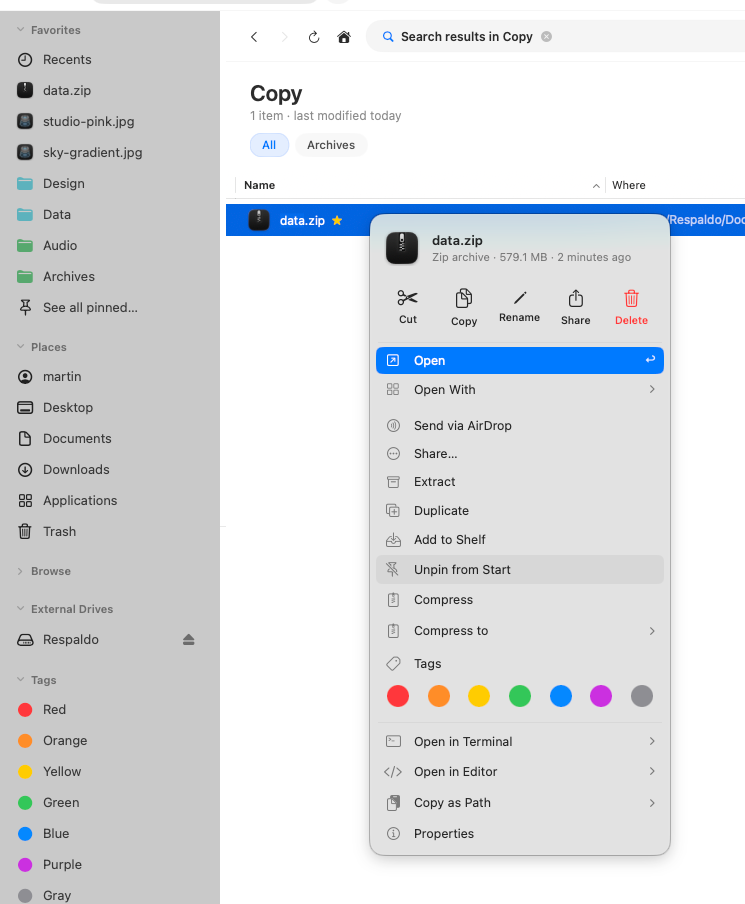
New pins are added to the front of the list, so the thing you just pinned is easy to find. On the Start Page you can drag pins to reorder them into whatever arrangement suits you.
Pinning a server
You can pin a connected remote server the same way you pin a local folder (drag it onto Pinned, or pin it from the Start Page) so a share you use often is always one click away alongside your local locations.
Where pins live
Pins are stored as bookmarks, so they survive a relaunch and follow the item even if you rename or move it. If a pinned item is temporarily unavailable (it’s on a drive you’ve ejected, for instance), it’s quietly hidden from view but kept in your list, and it reappears when the drive is back.
The Pinned sidebar row is a virtual location, like Recents and the Tags rows. Opening it shows your pinned items as a single listing, even though they live in different places on disk.
Where to go next
- The Start Page: your dashboard of drives, recents, and pins.
- Remote servers: connect a server, then pin it.
- Color tags: another lightweight way to group files.