 DockDuck
 Documentation
Transfers
Copy and move files to and from a server with the same gestures you use locally (drag, paste, recursive folder transfers) and watch them in a live progress panel with throughput and time remaining.
What it is. Moving files across the local/remote boundary: uploads, downloads, and remote-to-remote copies. The idea. A connected server behaves like any other folder, so the gestures you already know just work.
Copying to and from a server
You have the usual three ways to move files:
- Drag. Drag items between panes or windows: local into a remote folder to upload, remote into a local folder to download.
- Paste. Copy with ⌘C on one side, then paste with ⌘V in the destination folder.
- Drop onto a folder. Drop a selection directly onto a remote folder to drop it inside.
Every direction is handled: local → remote (upload), remote → local (download), and remote → remote (DockDuck streams through a temporary file).
DockDuck recognizes when a transfer crosses the local/remote boundary and routes it through the remote engine automatically. You don’t choose “upload” or “download”; you just move the files.
Folders transfer recursively
Drop a folder and DockDuck walks it for you: it recreates the directory on the other side and copies every nested file and subfolder. There’s nothing to flatten or zip first.
The progress panel
Any transfer that crosses to or from a server appears in the Transfers panel so you can keep working while it runs.
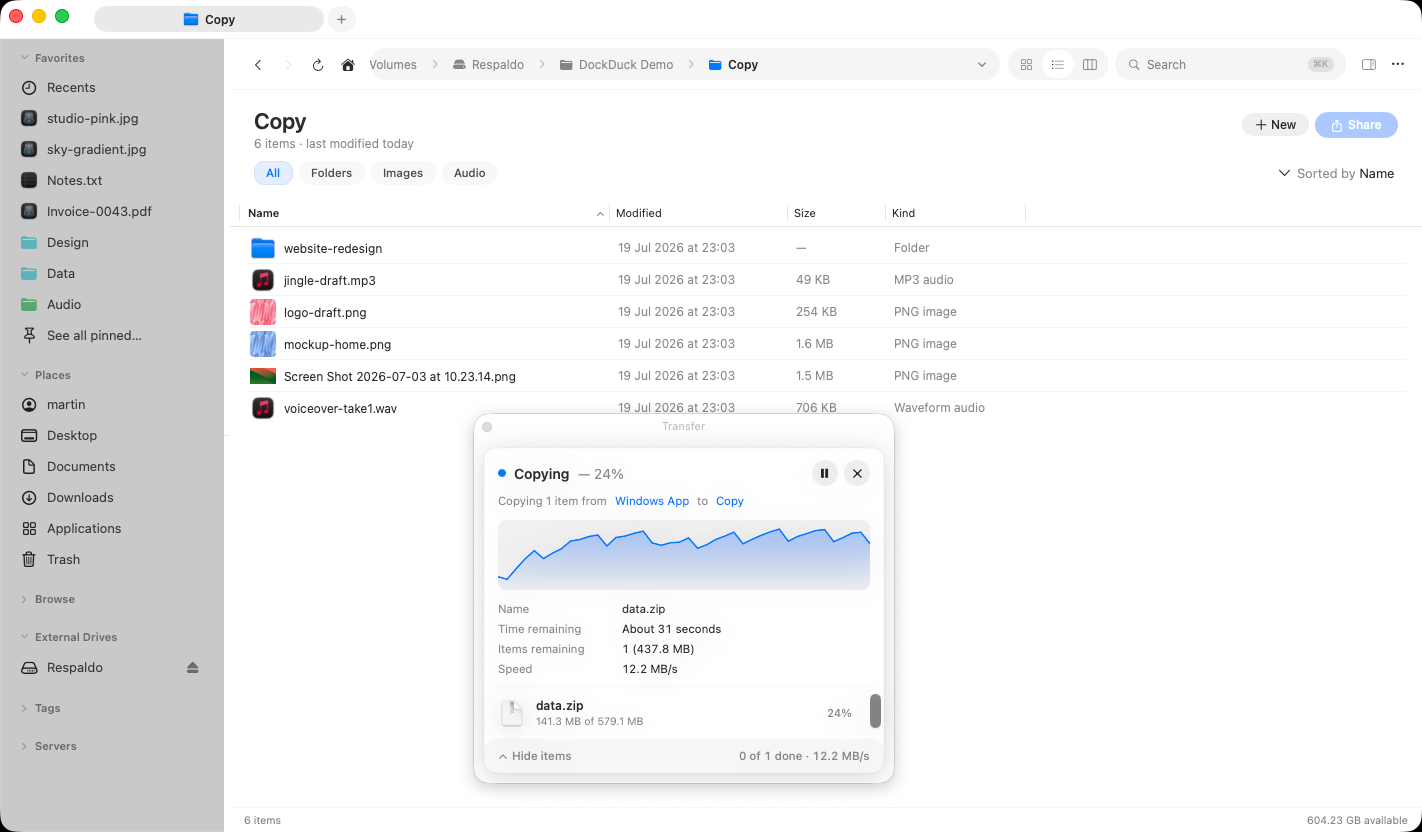
The panel shows, per operation:
- A percentage complete and a count of items left.
- A throughput chart, a sparkline of recent transfer speed.
- The current speed in bytes per second, smoothed across recent samples so it doesn’t jump around.
- Time remaining, an estimate derived from the smoothed speed and the bytes still to go. It reads as About … left once real throughput has been measured.
- Items remaining, with the bytes left in the file currently transferring.
The Simultaneous transfers setting (Settings → Servers) decides how many files move at once, each on its own connection, the model FileZilla uses. The default is 1 (sequential), which is the reliable choice: many FTP servers expose only a small pool of data ports and push back when several connections hit them at once. Raise it for faster parallel transfers on servers that allow it.
Finish notifications
When a transfer runs long enough that you’ve likely switched away, DockDuck posts a Notification Center banner (with a sound) the moment it finishes, so you don’t have to watch the panel. macOS only shows the banner when DockDuck isn’t the front app, so you’re notified exactly when you’ve moved on to something else. Quick transfers finish silently; failed ones say so, so an error never slips past.
When a transfer hits trouble
Transfers are resilient by design. If a server resets a connection mid-download under load, DockDuck backs off, reopens the connection, and retries that file before giving up. If an individual item still fails, it’s marked failed with a plain-language reason (and an error code you can quote) while the rest of the batch carries on.
Parallel downloads need a saved server (one you ticked Remember), because opening extra connections requires the stored password. A one-off connection transfers one file at a time.
Two-up: local beside the server
For a side-by-side workflow, open dual-pane view: put a local folder in one pane and the server in the other, then drag across to transfer. Compare folders goes a step further, diffing a local build against the deployed site before you copy.
Where to go next
- Managing servers: saving, editing, and the transfer defaults.
- Troubleshooting: host keys, timeouts, and error codes.
- The Connect sheet: every field, and how URLs pre-fill it.
- Remote servers overview: the four protocols at a glance.