 DockDuck
 Documentation
The Connect sheet
Every field in the "Connect to Server" sheet, how a URL you type in the address bar pre-fills it, and what the host-key and certificate trust prompts mean.
What it is. The Connect to Server sheet is the dialog that finishes a connection DockDuck can’t complete on its own. When you see it. Type a server URL in the path bar that’s missing a username or password, and the sheet opens pre-filled with everything the URL already supplied. You just complete the rest and connect.
How a typed URL pre-fills it
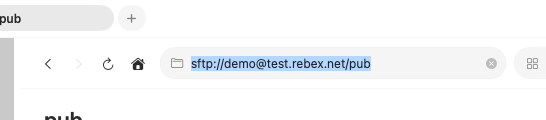
The path bar is the front door. Type a remote URL and DockDuck parses it before treating it as a local path.
Press ⌘L to focus the path bar.
Type a server URL, anything from a bare host like
sftp://example.com to a fully specified
sftp://user@example.com:2200/var/www, and press ↵.
If the URL already carries both a username and a password, DockDuck connects straight away. If either is missing, the Connect sheet opens with the scheme, host, port, user, and path already filled in.
DockDuck only intercepts the schemes it knows: sftp,
ftp, ftps,
smb, webdav, and
davs. Plain http:// and
https:// are deliberately left alone so they never
hijack a web address. Request WebDAV explicitly with webdav:// or davs://.
The fields
The sheet header shows the protocol it’s connecting with (for example, SFTP). Below it:
| Field | What it does |
|---|---|
| Server | The host name or IP address. Required. |
| Port | The TCP port. Leave it blank to use the protocol’s default: 22 for SFTP, 21 for FTP/FTPS, 445 for SMB, 80/443 for WebDAV. The placeholder shows that default. |
| Path | The folder to open on connect. For SMB this is the share name; for everything else it’s a path like /var/www. Defaults to /. |
| Username | Optional. Some servers allow anonymous access. |
| Password | Optional. Typed into a secure field, never shown. |
| Remember this server | On by default. Saves the server to your list and stores the password in the macOS Keychain so you can reconnect with one click later. |
Remember this server does two things at once: it adds the server to your saved list and writes the password to the Keychain. Untick it for a one-off connection you don’t want to keep.
Host-key and certificate trust
The first time you reach an encrypted server, DockDuck has to confirm you’re
talking to the machine you think you are, exactly the check ssh does on a
first connection.
- SFTP: host key. If the server’s SSH host key isn’t already trusted, the sheet shows its fingerprint and the Connect button becomes Trust & Connect. Verify the fingerprint matches your server, then trust it once and DockDuck remembers it for next time.
- FTPS: certificate. Same flow for an unknown TLS certificate: the fingerprint is shown, and trusting it pins the certificate for that host.
A trust prompt on a server you’ve connected to before can mean the key or certificate genuinely changed, or that someone is impersonating the server. Don’t trust a changed fingerprint until you know why it changed. See troubleshooting for what to do.
If the connection fails for another reason (wrong password, unreachable host), the sheet stays open with the reason shown in red so you can fix it and retry without retyping everything.
Where to go next
- Remote servers overview: the four protocols at a glance.
- Managing servers: saving, editing, and Settings → Servers.
- Transfers: copy, move, and recursive folder transfers.
- Troubleshooting: host keys, timeouts, and error codes.