 DockDuck
 Documentation
Selecting & opening
Click, Shift-click, and Cmd-click to build a selection, open with a double-click or Return, jump to a file by typing, and reach every action from the context menu.
What it is. Everything you do to a file starts with selecting it. DockDuck follows the macOS conventions you already know, so a single glance tells you what’s selected and one keypress acts on it.
Selecting items
Selection works the same in Grid, List, and Columns.
| Gesture | Result |
|---|---|
| Click | Select one item, replacing the current selection |
| Shift-click | Extend the selection to the clicked item (a contiguous range) |
| ⌘-click | Add or remove a single item, leaving the rest selected |
| Drag in empty space | Rubber-band marquee around several items |
| ⌘A | Select everything in the folder |
⌘-click is the fastest way to deselect one item from a large selection, no need to start over.
Opening items
Select one or more items.
Double-click, or press ↵ (Return), to open them. Folders open in place; files open in their default app.
Press ⌫ (Backspace) on its own to go back to the enclosing folder, the same browser-style navigation you’d expect.
Return opens the selection in DockDuck. It does not start a rename, the way it does in some file managers. To rename, use the context menu or batch rename.
Type-ahead
Start typing while a folder is focused and DockDuck jumps to the first item whose
name matches what you’ve typed. The letters accumulate into a prefix and reset
after a short pause, so typing re lands on report.pdf rather than the first
file starting with r. Type-ahead works in both Grid and List.
The Space bar is reserved for Quick Look, so it never feeds into type-ahead.
The context menu
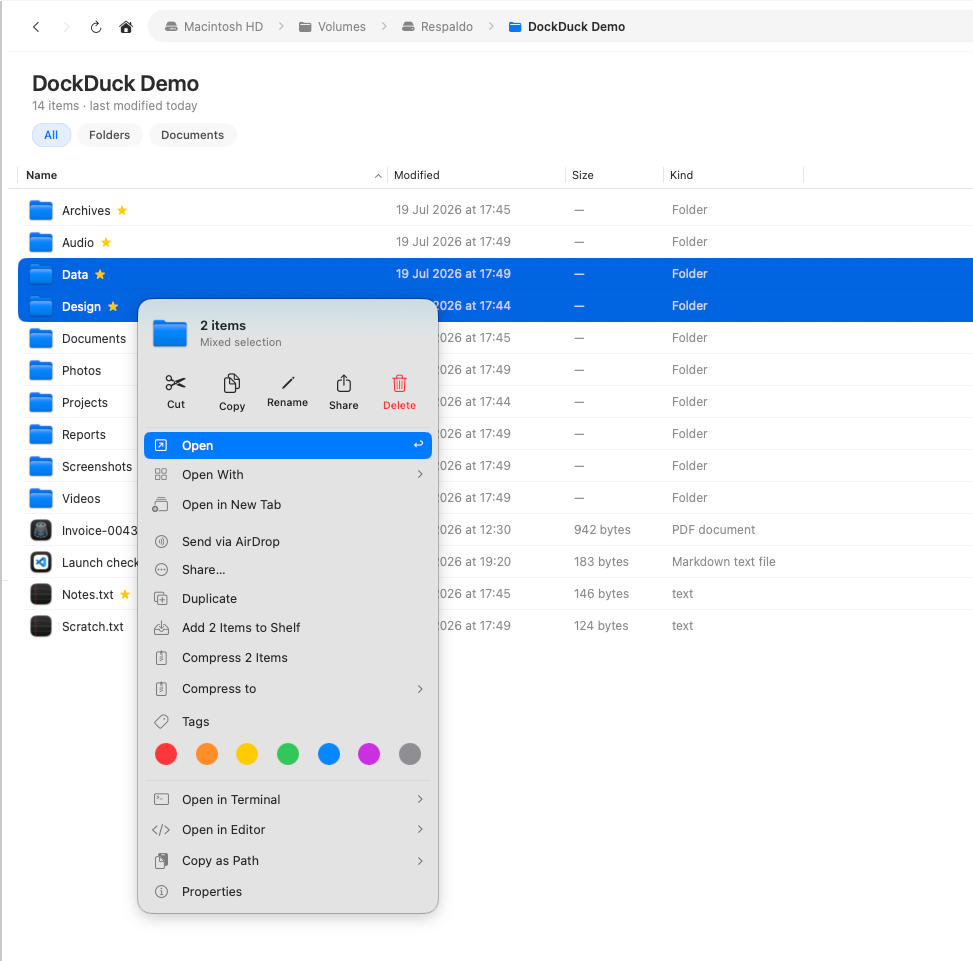
Right-click (or Control-click) any item to open its context menu, the single place that gathers every action for the current selection: Open, Cut, Copy, Rename, Duplicate, Compress, Share, Move to…, Add to Shelf, and Move to Trash, plus Reveal in Finder and Copy Path. The menu adapts to what you’ve selected: a single item offers an inline Rename, while a multi-item selection routes Rename to the batch rename sheet instead.
Right-clicking empty space in a folder opens the background menu for the folder itself: New Folder, Paste, and view options.
Where to go next
- Copy, move & trash: the clipboard, drag gestures, and undo.
- Quick Look: preview without opening.
- Keyboard shortcuts: the full list, all rebindable.