 DockDuck
 Documentation
Developer Tools
Optional, off-by-default extras for developers, starting with Git status badges on files inside a repository.
What it is. A small set of developer-oriented extras under Settings → Dev Tools, kept off by default so they never clutter the experience for everyone else. When to use it. Turn them on if you browse code repositories in DockDuck.
Git status badges
Enable Git status badges to overlay a small colored dot on files inside a Git repository, showing each file’s status at a glance:
- modified: tracked and changed,
- new / untracked: not yet in the repo,
- ignored: excluded by
.gitignore.
The badge appears in grid, list, and column views, on files within any folder that sits inside a Git working tree.
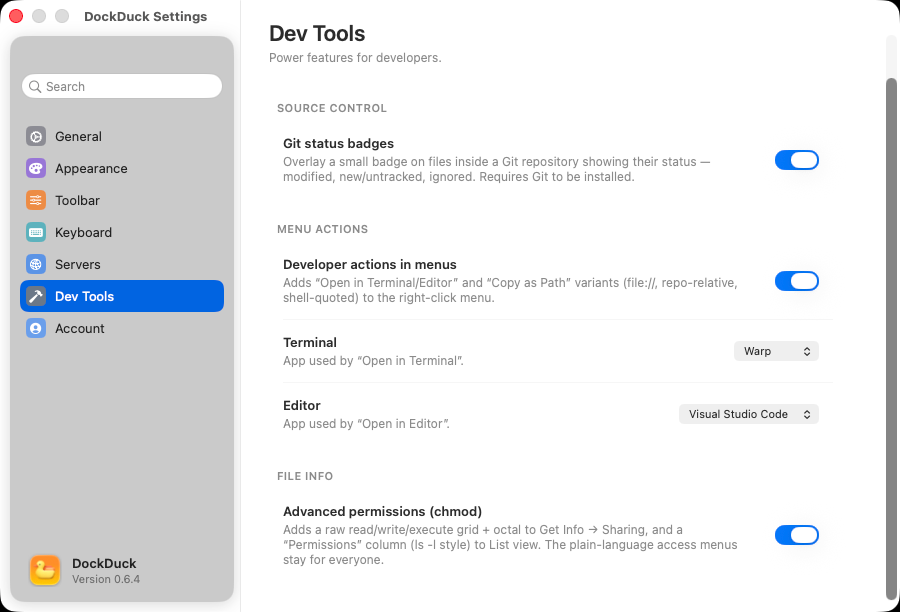
Git status badges require Git to be installed on your Mac. DockDuck reads status from your real Git. It doesn’t bundle or shim its own.
Developer actions in menus
Turn this on to add developer-oriented entries to the right-click menu: Open in Terminal and Open in Editor (with pickers for your preferred terminal and editor), plus a Copy as Path variant. They stay out of the menu entirely until you enable them.
Advanced permissions (chmod)
Adds a raw read / write / execute grid to Get Info and an optional permissions column to List view, the Unix mode bits, for when you need to see or set them directly rather than through the standard Sharing & Permissions UI.
Where to go next
- Settings: the rest of DockDuck’s preferences.
- View modes: where the badges show up.