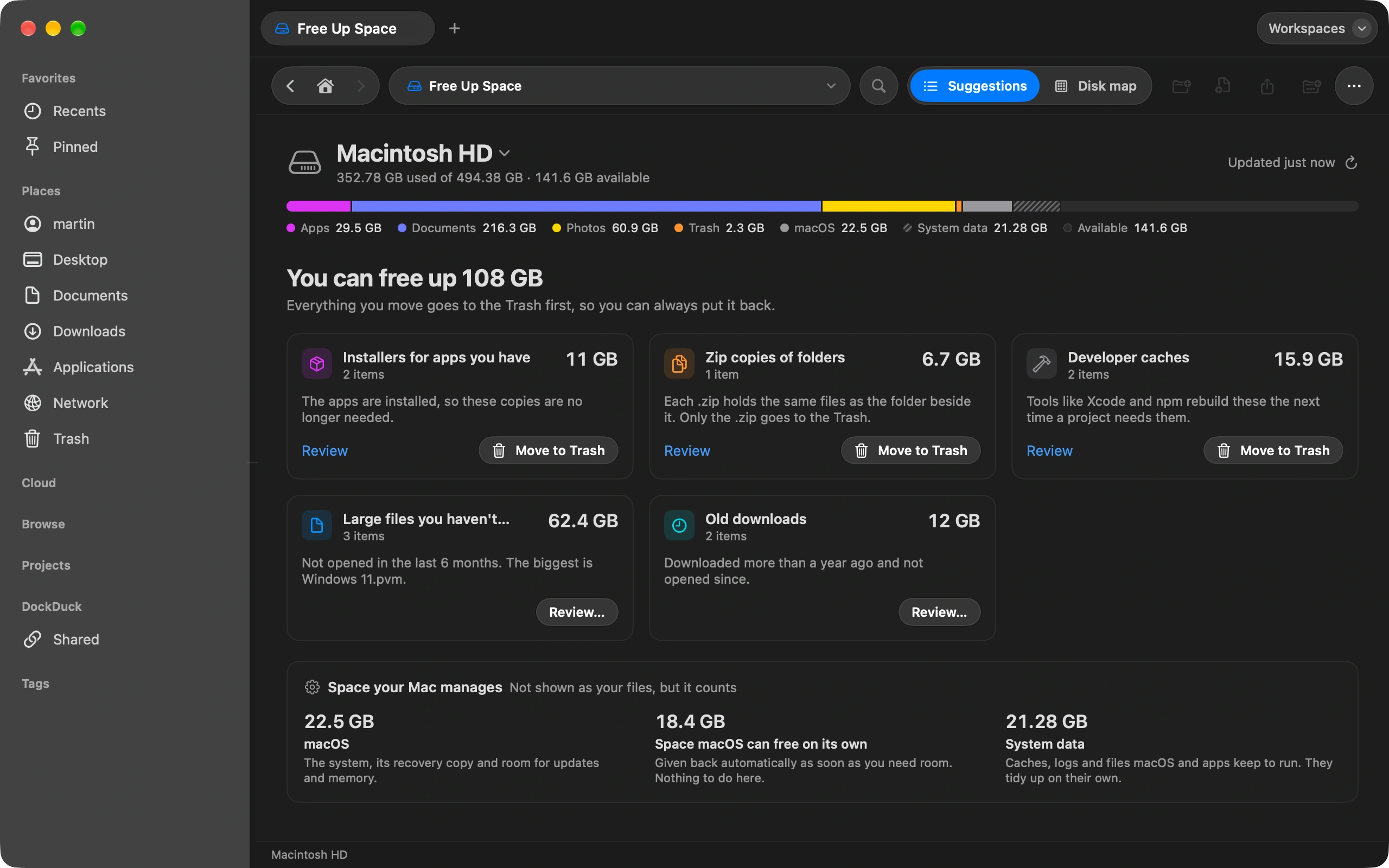
Claude can sort a messy folder, rename files and put things where they belong, if it has a way to reach them. DockDuck gives it one. You ask in Cowork, in the Claude app, and the work happens in your own DockDuck window, where you can watch it and take it back.
Get the Claude app
You need the Claude app for Mac, on a paid Claude plan. Install it and sign in before you go on. It has to be the app on this Mac: Claude in a browser or on your phone cannot reach DockDuck.
Turn on Let Claude use DockDuck
Open DockDuck’s Settings with the shortcut, choose Dev Tools and scroll to Claude at the bottom. Turn on Let Claude use DockDuck. That one switch also adds DockDuck to the Claude app, so there is no file to edit and nothing to install. ⌘,
Restart Claude
Claude only notices DockDuck when it starts, and closing its window does not quit it. Click Restart Claude in the message DockDuck shows. If Claude was closed, just open it.
Ask for what you want
In the Claude app, open Cowork and write it the way you would say it: “Put the PDFs in my Downloads folder into a folder called PDFs.” You do not have to name DockDuck. For a big cleanup, ask Claude to tell you its plan first.
Let Claude in
The first time Claude reaches for your files, DockDuck asks you at the bottom of its window. Nothing happens until you click Allow. DockDuck asks again the next time you open it, so Claude never gets in without you knowing.
Watch it work, and undo what you do not like
Folders appear and files move in your DockDuck window as Claude goes. Each change shows a short message with an Undo button, and Undo in the Edit menu takes it back later.
Good to know
- Claude cannot delete anything on your Mac for good. What it removes goes to the Trash, where you can put it back.
- Beyond moving and renaming, Claude can tag files, compress and unpack them, set up a workspace for a project, add a rule that keeps a folder tidy, and make a share link when you ask it to send something.
- On your saved FTP and SFTP servers Claude can upload, download and rename, but a server has no Undo. Before Claude deletes anything there, DockDuck shows you exactly what will go and waits for your answer.
- Claude never sees your server passwords, and it cannot add a server, delete a rule or delete a workspace. Those stay with you.
- Turn the switch off and Claude is out at once. Turning it on again makes DockDuck ask you again.
Finder and DockDuck
Finder gives Claude nothing to work with. What Claude changes on its own happens out of sight, and Undo in Finder does not bring it back.
Claude works in your DockDuck window. You see each change as it happens and undo it with one click.
Questions people ask
- Is it safe to let Claude move my files?
- DockDuck was built to keep you in charge. It asks before letting Claude in, it only takes requests from its own connector, and system folders cannot be moved, renamed or trashed. Nothing on your Mac is deleted for good, and what Claude changes there can be undone.
- Claude does not see DockDuck. What do I do?
- Go back to Settings, Dev Tools, click Add to Claude and then restart Claude. Quit it from its menu or with Command Q, because closing the window leaves it running. If DockDuck says the connector is missing, update DockDuck to the latest version.
- Does DockDuck have to be open?
- No. If DockDuck is closed when Claude needs it, it opens on its own, and it asks for your permission as usual.
- Is this an MCP server?
- Yes. DockDuck includes a connector that speaks MCP, the standard assistants like Claude use to work with apps. It runs on your Mac, inside DockDuck, and the switch in Settings sets it up for the Claude app.
- Do my files get sent anywhere?
- DockDuck itself sends nothing. Claude sees what it asks DockDuck for, like the names in a folder, and that is handled by Claude under its own privacy terms. A file leaves your Mac only when you ask Claude to share it as a link or upload it to a server.

Try DockDuck on your Mac
Download for MacFree 14-day trial. No account and no card required.
Keep reading
All guidesHow to send a large file from your Mac
Select the file in DockDuck and choose Share Link. You get a link to send to anyone, and they open it in any browser.
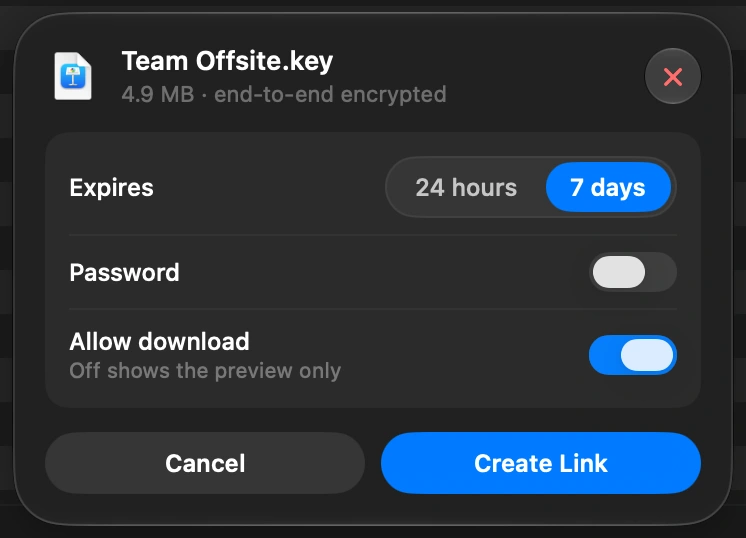
How DockDuck share links work, and who can see your file
Your Mac locks the file before it leaves. Our servers only ever hold the locked copy. The key stays in your Mac’s own Keychain and travels inside the link, never to us.
The key is kept in your Mac’s local Keychain and goes in the link you send. It is never on our servers or in our database.
How to see what is taking up space on your Mac
Free Up Space shows what fills your disk and what is safe to remove.