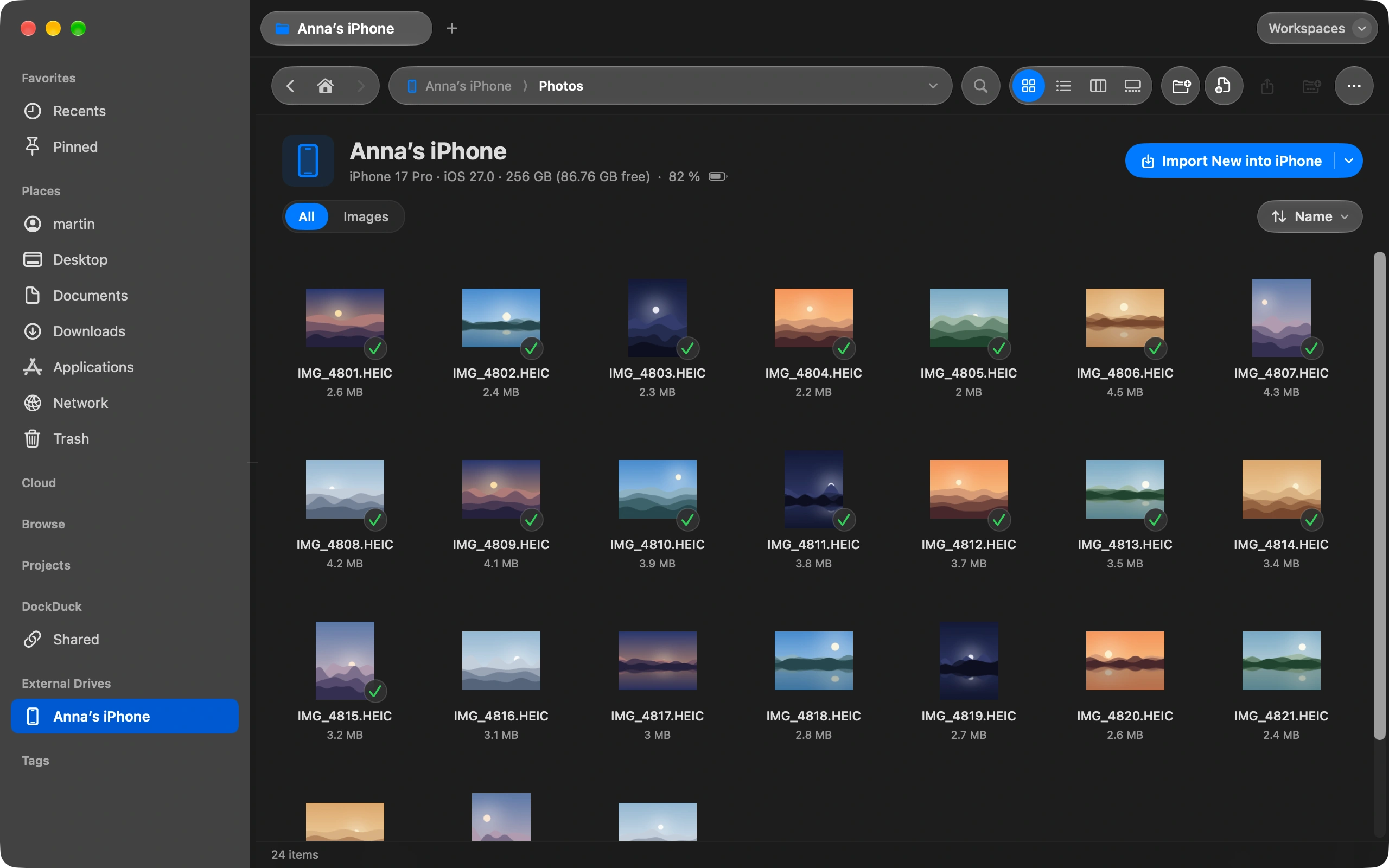
macOS can open SMB shares, but not FTP or SFTP. DockDuck connects to both and shows the server next to your Mac, so you can drag files across.
Type the address
Press the shortcut to focus the address bar and type the server, like sftp://user@example.com. Press Return. ⌘L
Fill in what is missing
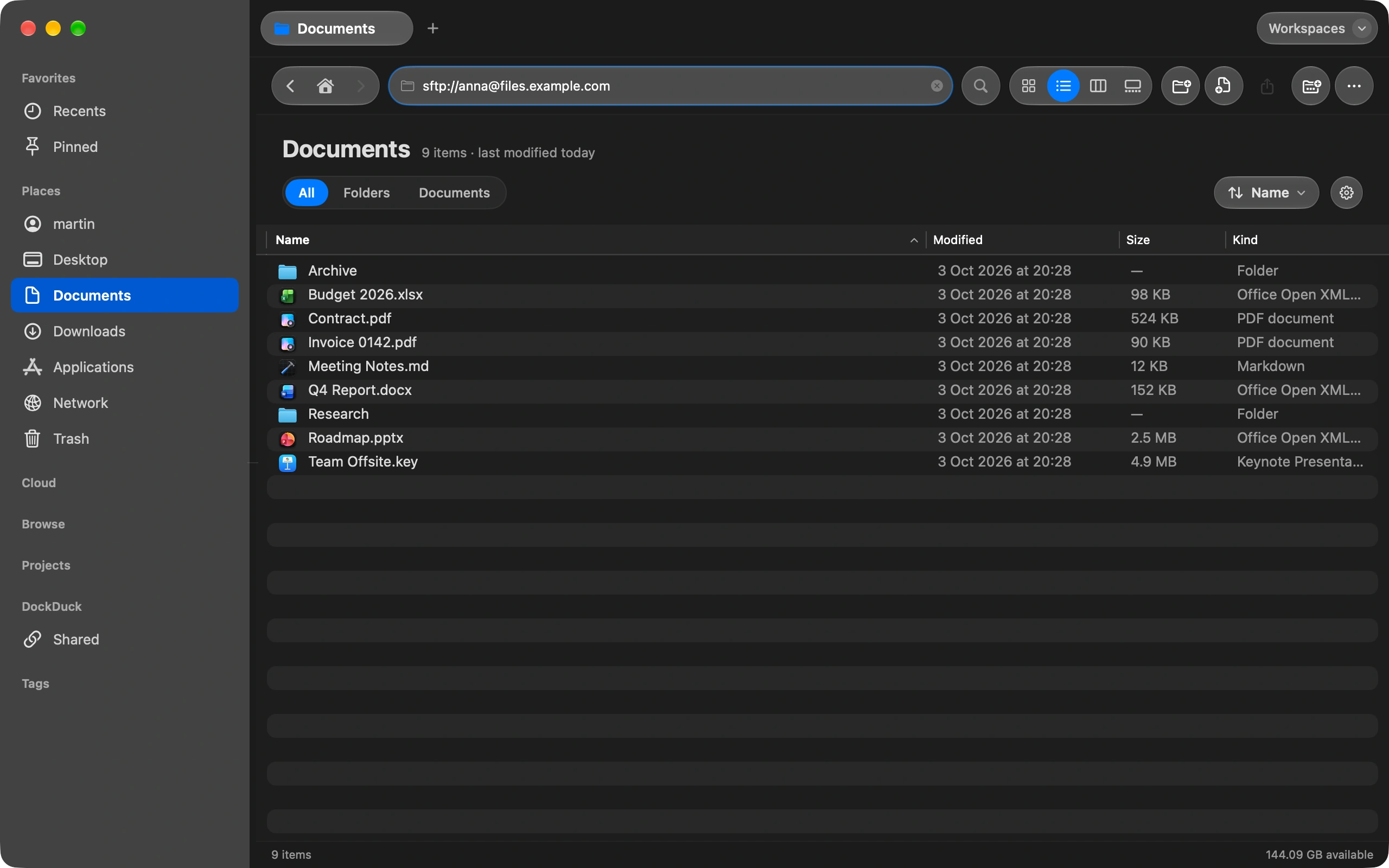
The Connect to Server sheet opens with the host, port, user and path already filled in. Add the password, or pick an SSH key for SFTP. Leave Remember this server on to keep it in the sidebar and the password in your Keychain.
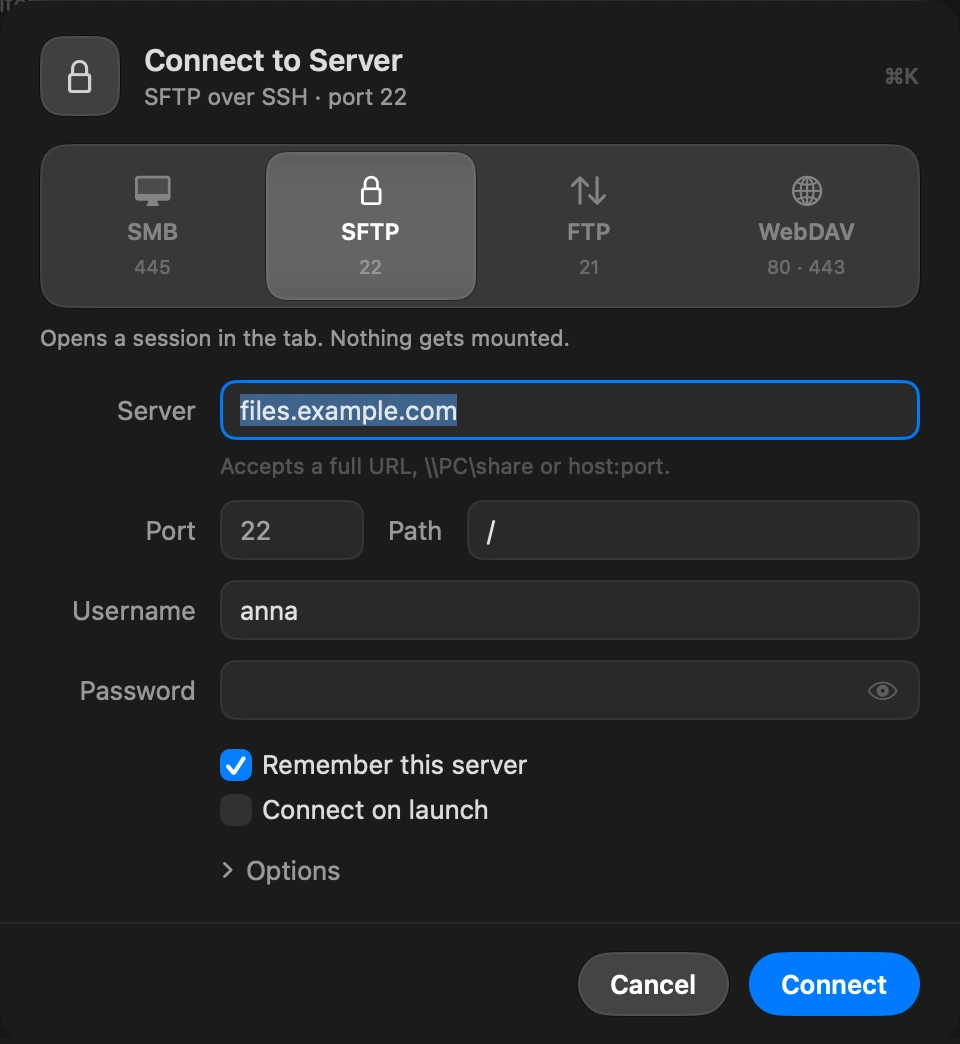
Trust the server once
The first time, DockDuck shows the server’s host key and asks you to confirm it, the same check ssh does.
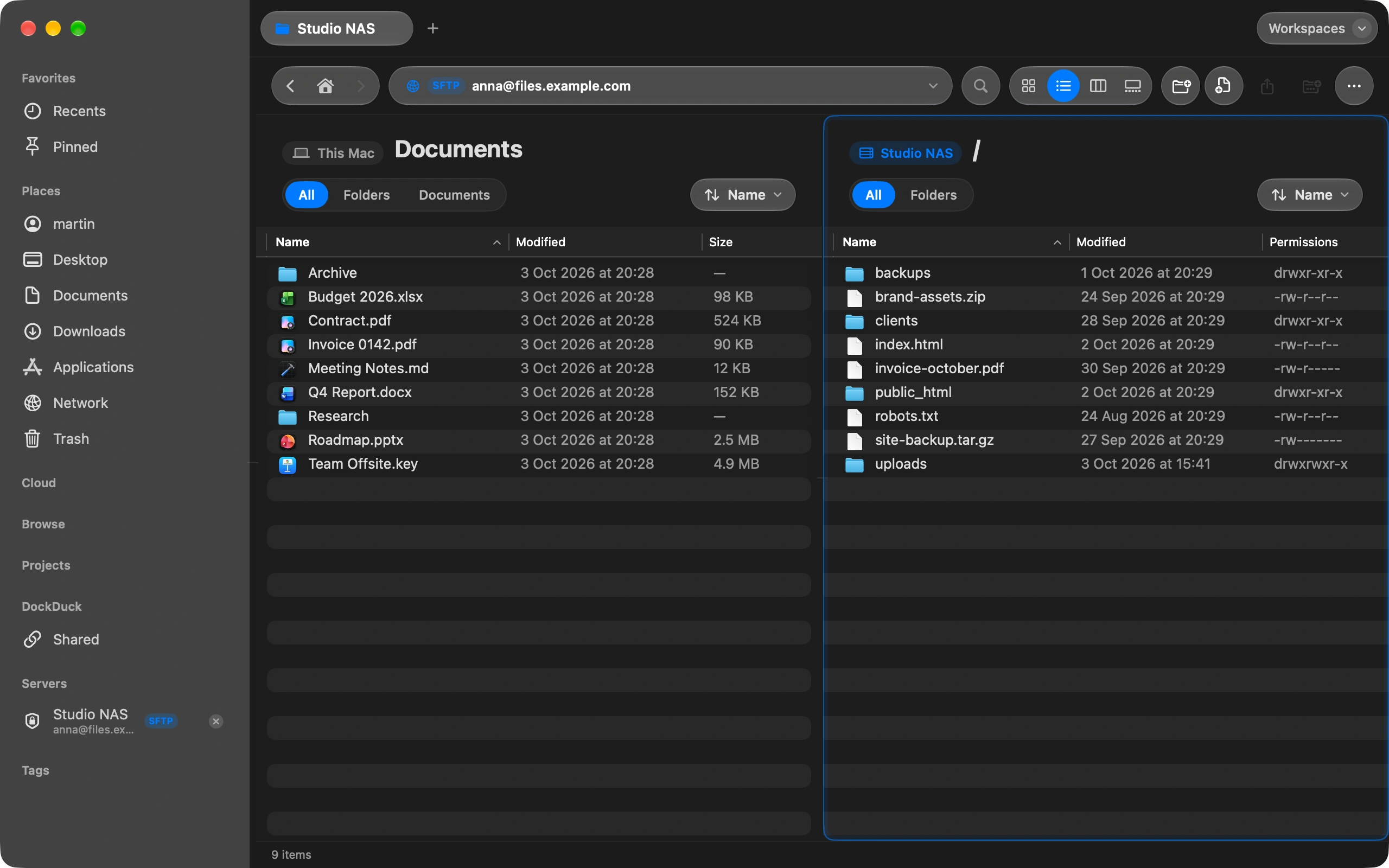
Work on both sides
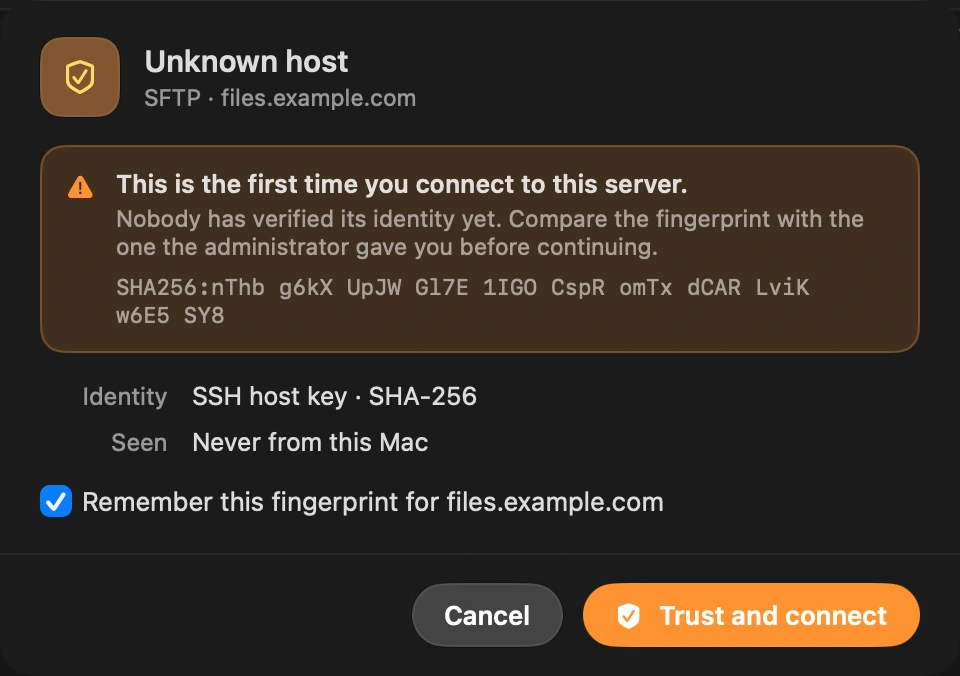
The window shows your Mac on the left and the server on the right. Drag files across in either direction. The server side lists each file’s permissions, owner and group.
Come back later
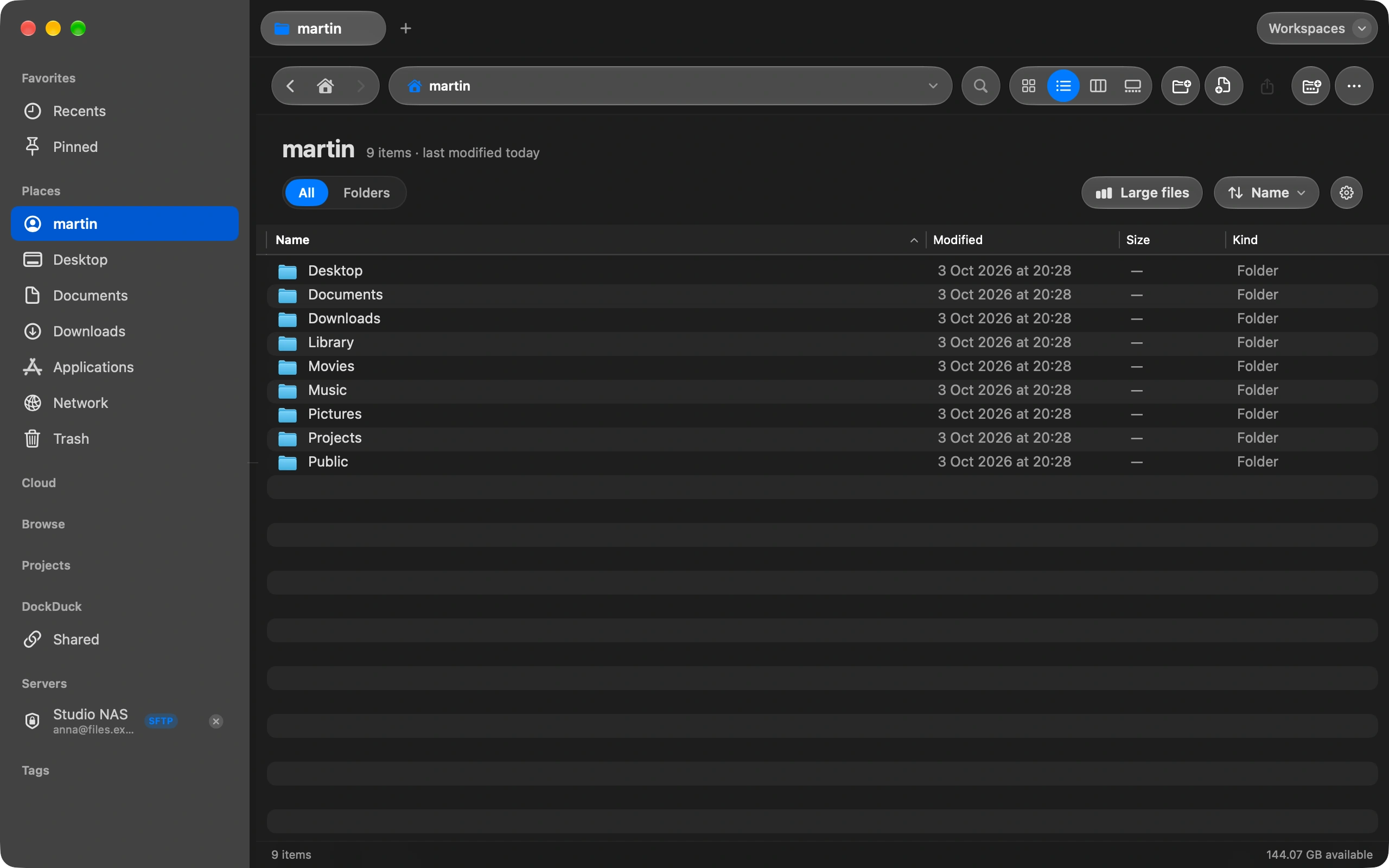
The server stays in the sidebar. Right-click it to edit, rename, disconnect or remove it.
Good to know
- DockDuck speaks SFTP, FTP, FTPS, SMB and WebDAV.
- Older SFTP servers that only offer older encryption connect too. When a server cannot be reached, the message says why in plain words.
- A small note at the bottom of the window says what the server is doing. Click it to read the whole history.
Finder and DockDuck
Go to Server opens SMB and WebDAV. FTP and SFTP need another app.
All four protocols, in the same tabs and panes as your local files.
Questions people ask
- Where is my password stored?
- In the macOS Keychain on your Mac, the same place Safari keeps yours. DockDuck never sends it anywhere but the server. Untick Remember this server for a one-off connection you do not want to keep.
- Can I use an SSH key instead of a password?
- Yes. For SFTP, pick the key file in the Connect sheet. Keys in your ~/.ssh folder are offered first, and a key with a passphrase asks for it once per session.
- Can I edit a file on the server directly?
- Open it like any file and DockDuck downloads a copy, opens it in your editor and uploads it again when you save. The transfer island at the bottom shows each upload, and a server that refuses a file says so right away.

Try DockDuck on your Mac
Download for MacFree 14-day trial. No account and no card required.
Keep reading
All guidesHow to send a large file from your Mac
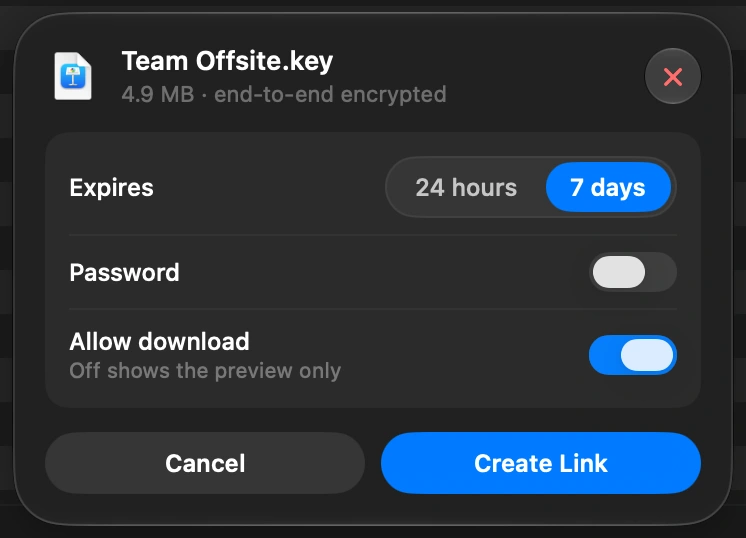
Select the file in DockDuck and choose Share Link. You get a link to send to anyone, and they open it in any browser.
How to see what is taking up space on your Mac
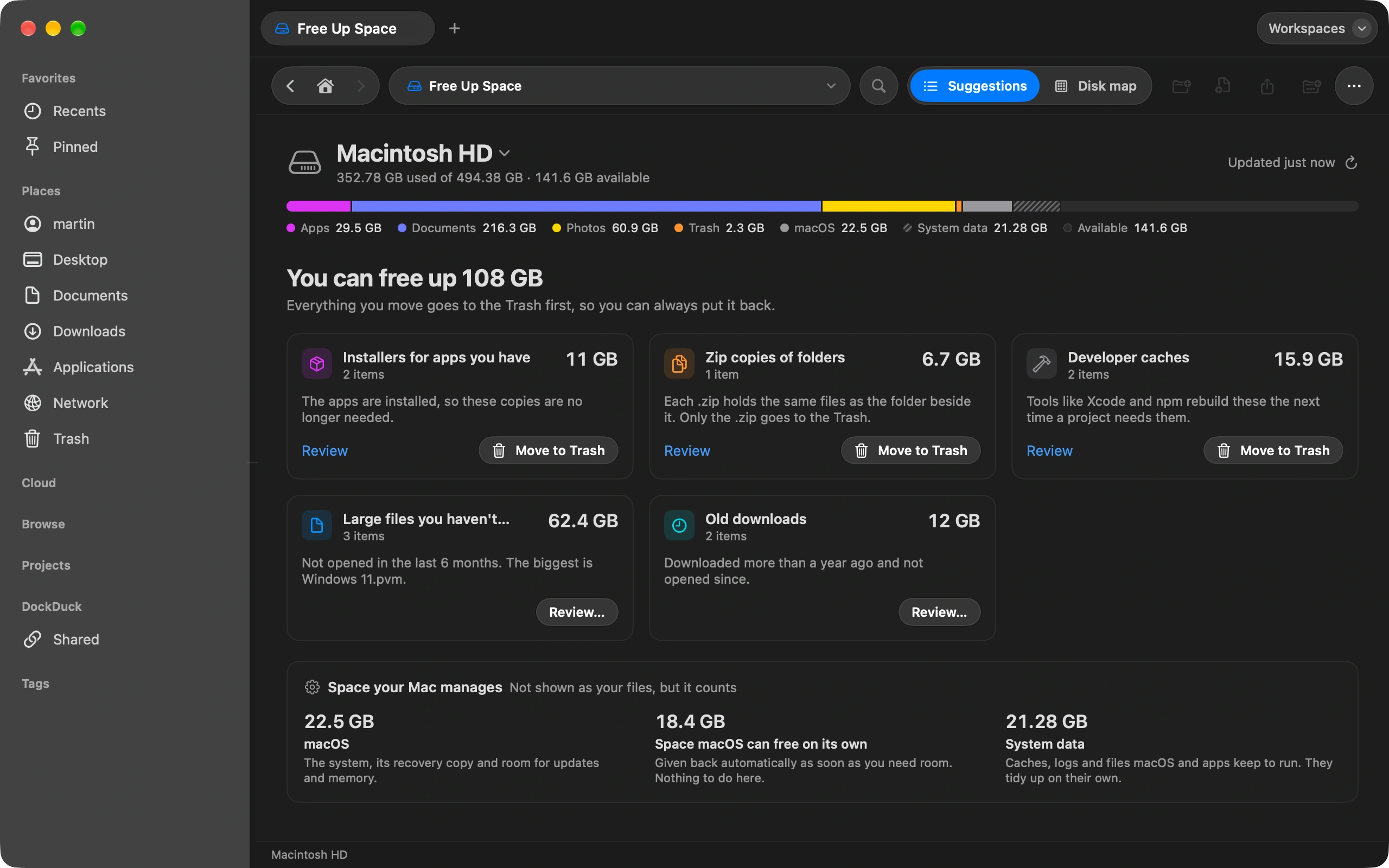
Free Up Space shows what fills your disk and what is safe to remove.
How to move photos from your iPhone to your Mac without iCloud
Plug in your iPhone and import photos straight into any folder you choose.