When a disk fills up, the hard part is knowing what to delete. Free Up Space does the sorting and leaves the decision to you.
Open Free Up Space
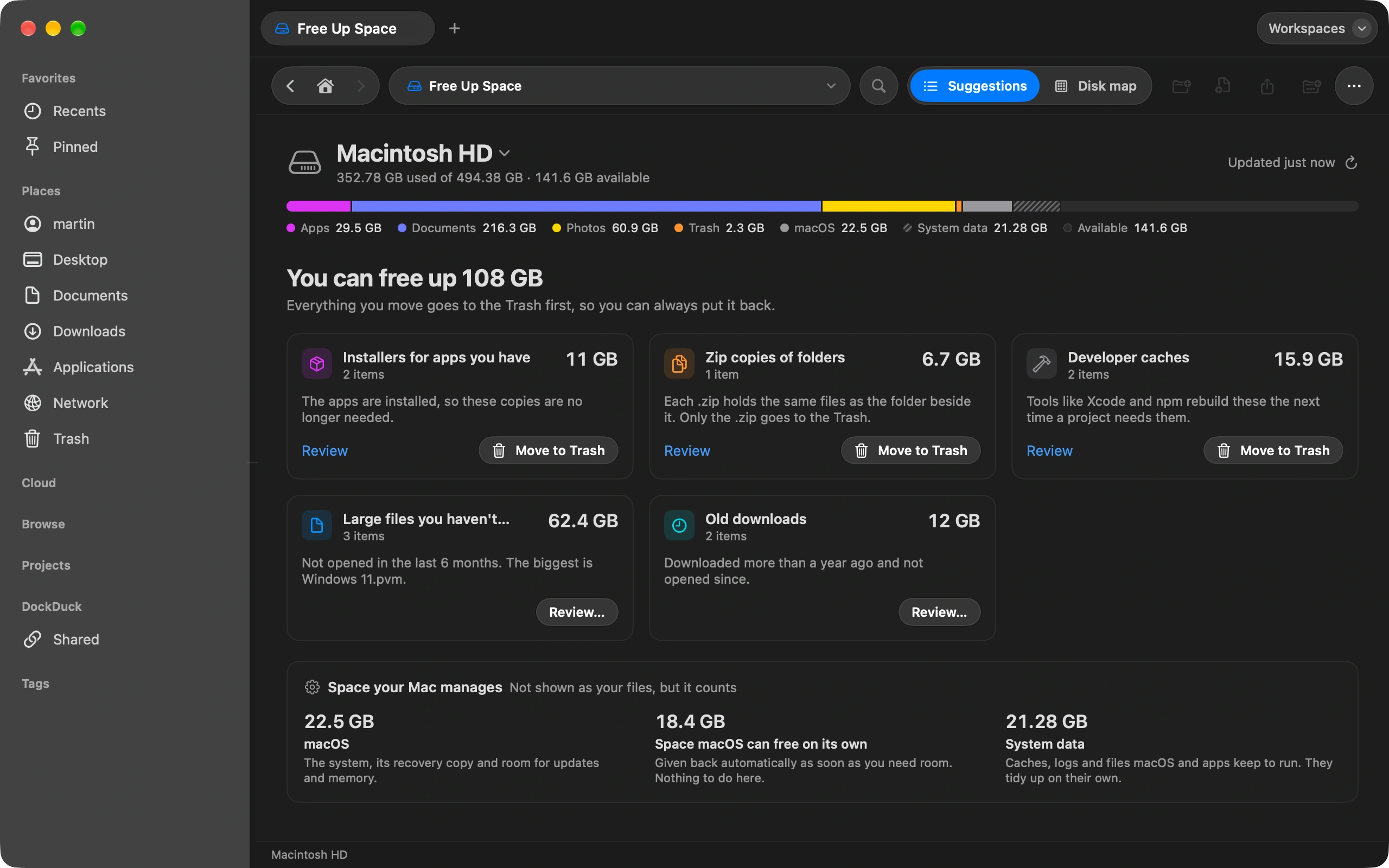
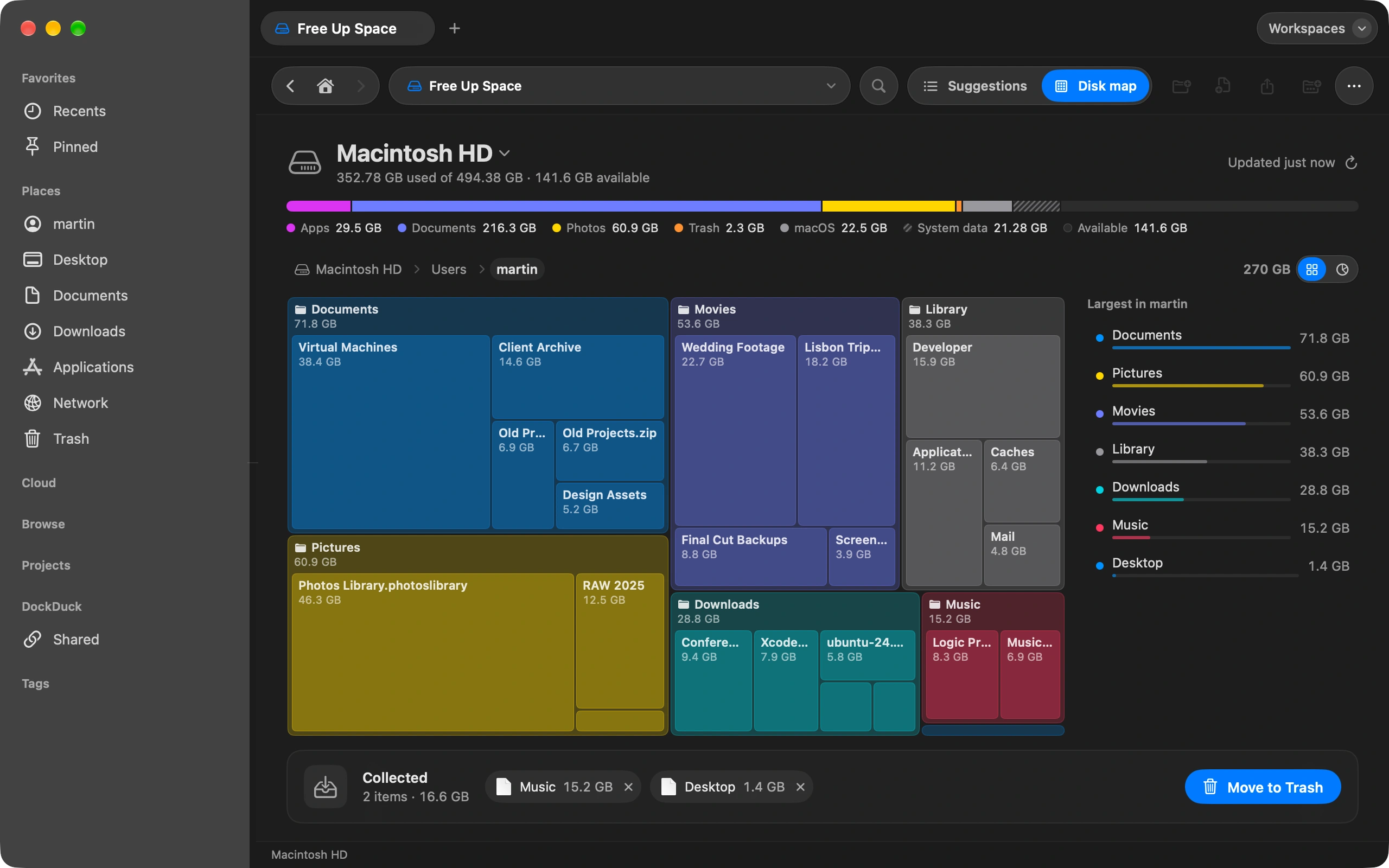
Open the Trash in the sidebar and click Free Up Space. The bar at the top shows where the space goes: apps, documents, photos, the Trash and macOS itself.
Read the suggestions
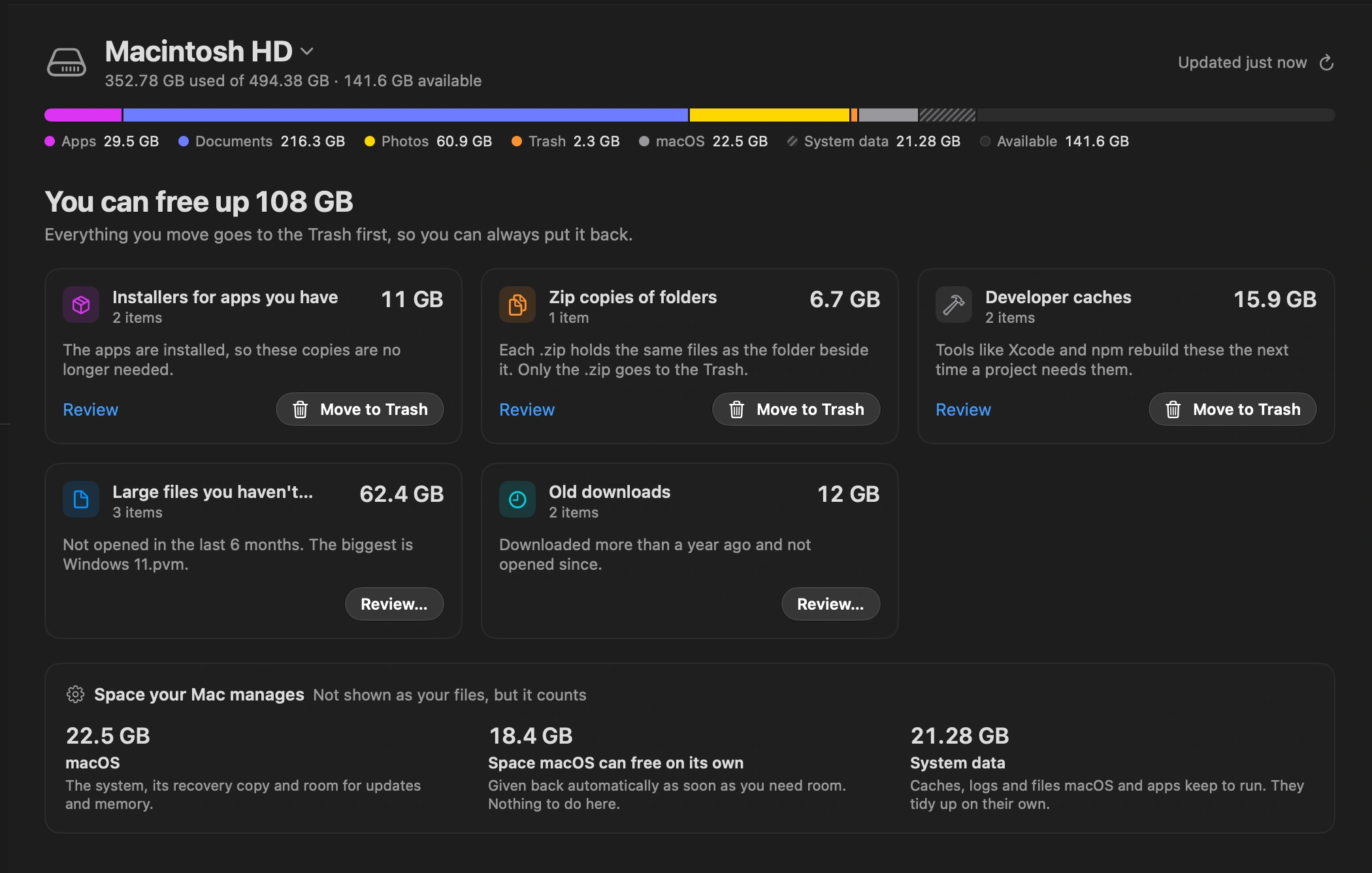
DockDuck lists what is safe to remove: downloads you have not opened in a year, installers for apps you already have, zip copies of folders you still keep, large files untouched for six months, and caches that developer tools rebuild on their own.
Look at the disk map
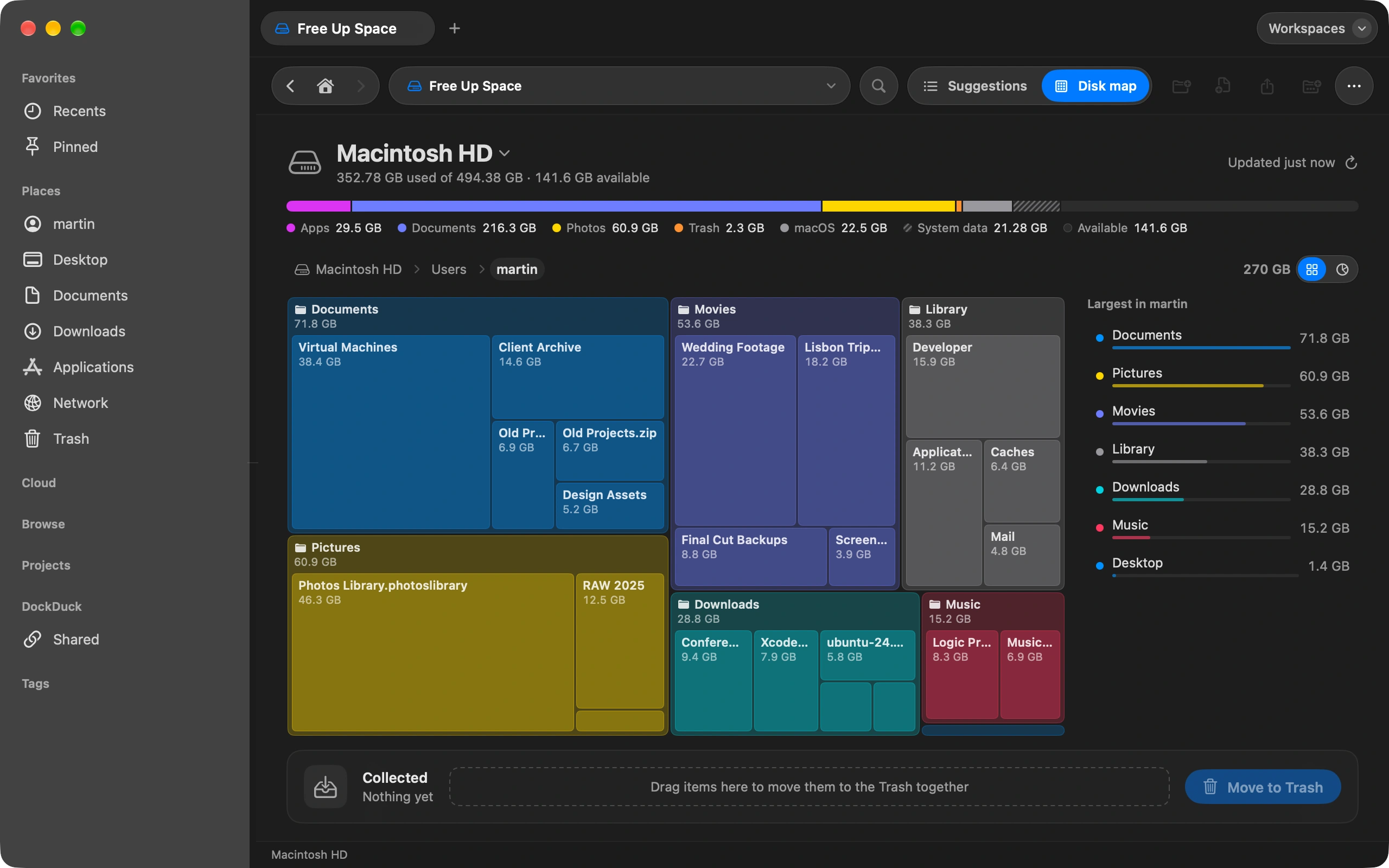
Switch to Disk map to see every folder by size, as blocks or as rings. Click into the big ones to see what is inside.
Send it to the Trash
Tick what you want gone and collect it in the tray. Everything goes to the Trash first, so you can put anything back.
Good to know
- Nothing is deleted for good until you empty the Trash.
- Space macOS manages, like the system and its recovery copy, is shown but never offered for removal.
- When a disk is almost full, DockDuck warns you and takes you straight here.
Finder and DockDuck
Storage settings shows categories, then leaves you to find the files.
A list of what is safe to remove, each file named, with a map of the rest.
Questions people ask
- Why does macOS say System Data takes so much space?
- System Data is everything macOS does not put in another category: caches, logs, old iOS backups, Time Machine snapshots waiting to be copied. Free Up Space names the parts you can act on, like developer caches and old backups, and leaves the rest to macOS, which gives that space back on its own when you need it.
- Is it safe to delete what Free Up Space suggests?
- Every suggestion is something you can get back or no longer need: an installer for an app that is already installed, a zip whose folder is still there, a download you have not opened in a year. You tick each item yourself, and it goes to the Trash first, not away.
- Does it work on external drives?
- Yes. Pick the drive at the top of the page and the bar, the suggestions and the disk map switch to it. Each drive has its own Trash, and DockDuck shows all of them in one place.

Try DockDuck on your Mac
Download for MacFree 14-day trial. No account and no card required.
Keep reading
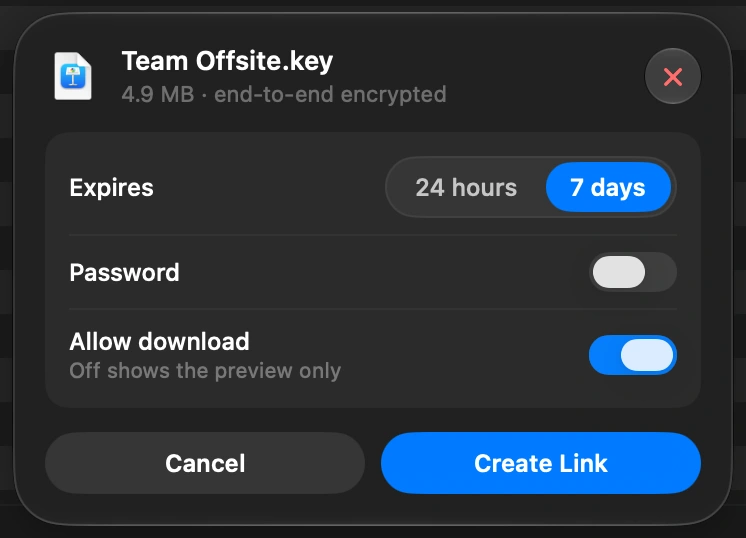
All guidesHow to send a large file from your Mac
Select the file in DockDuck and choose Share Link. You get a link to send to anyone, and they open it in any browser.
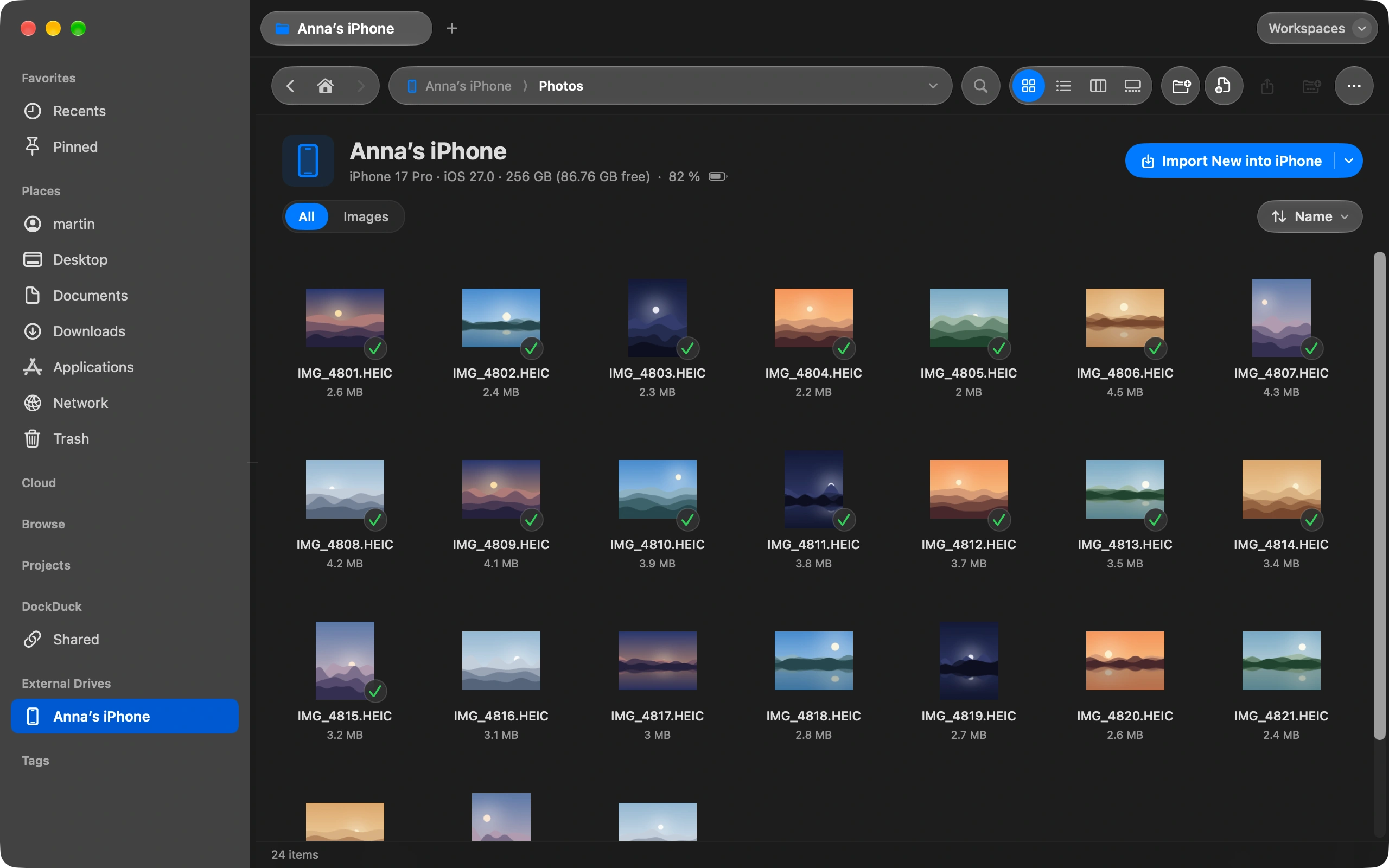
How to move photos from your iPhone to your Mac without iCloud
Plug in your iPhone and import photos straight into any folder you choose.
How to keep your Downloads folder tidy automatically
Sort Downloads once, then let rules keep it that way on their own.