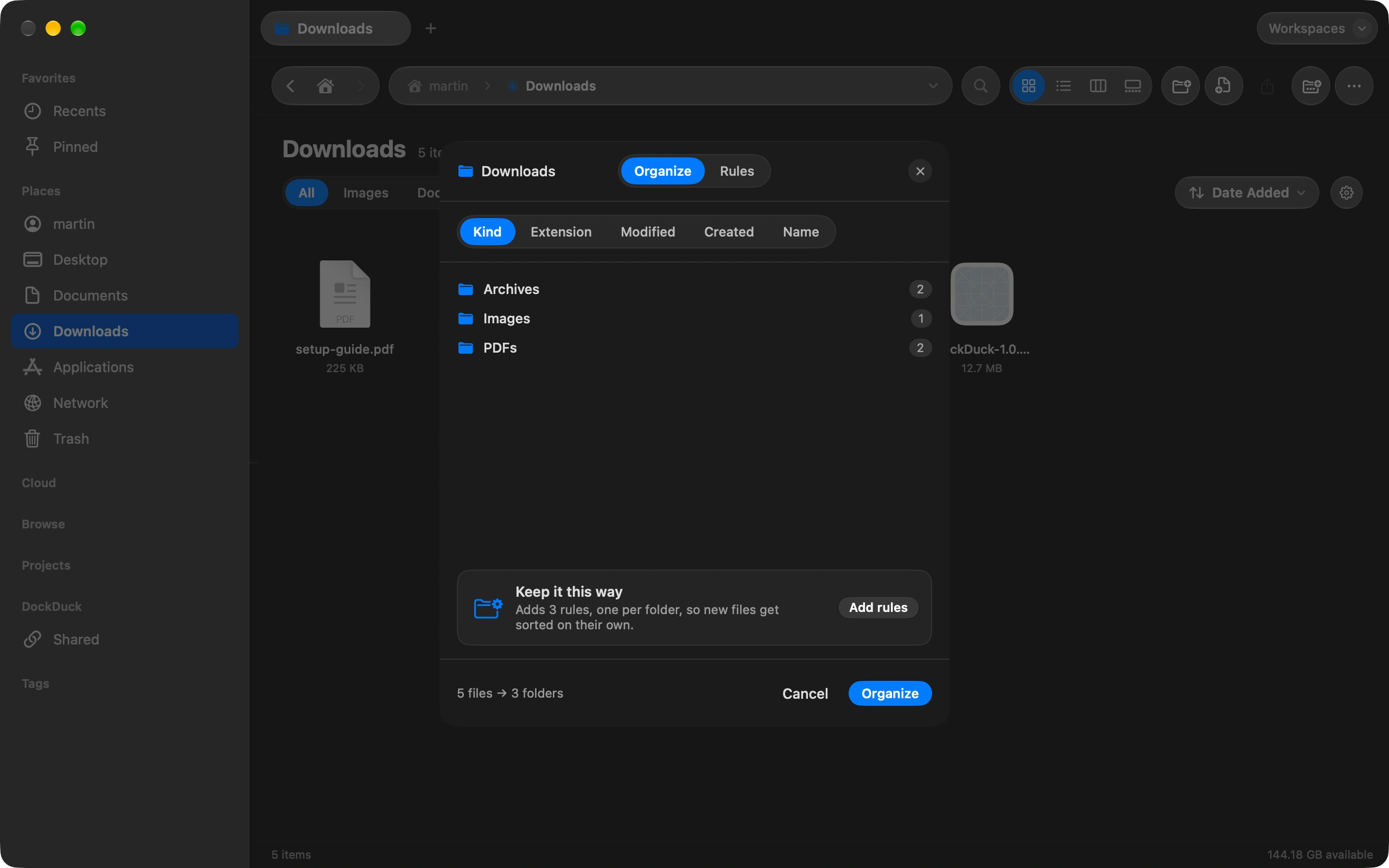
You do not need iCloud, the Photos app or a cable utility to get photos off an iPhone. A cable and DockDuck are enough.
Plug in your iPhone
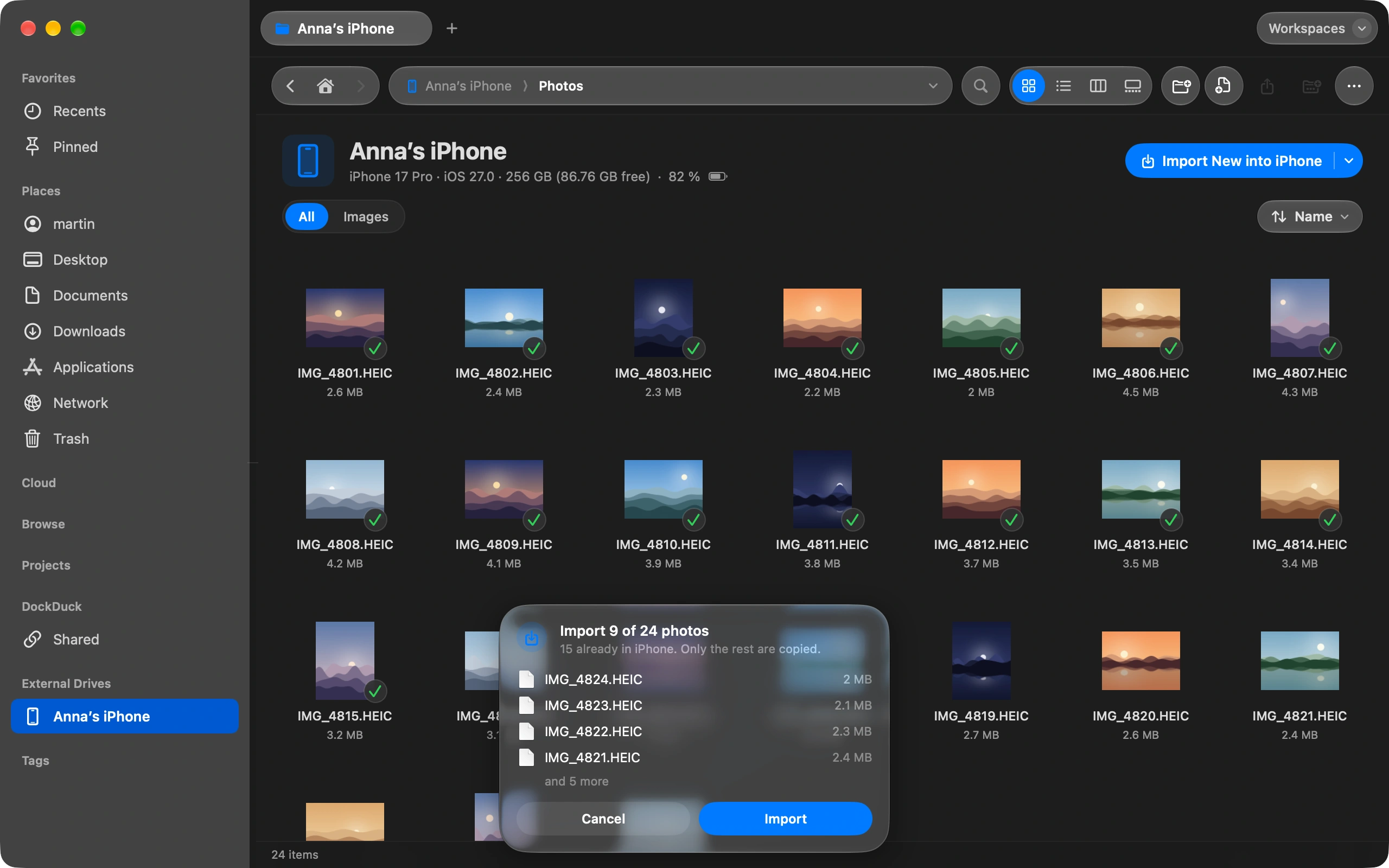
It appears in the sidebar with its name, model, free space and battery. If the device is locked, unlock it and the page fills in by itself.
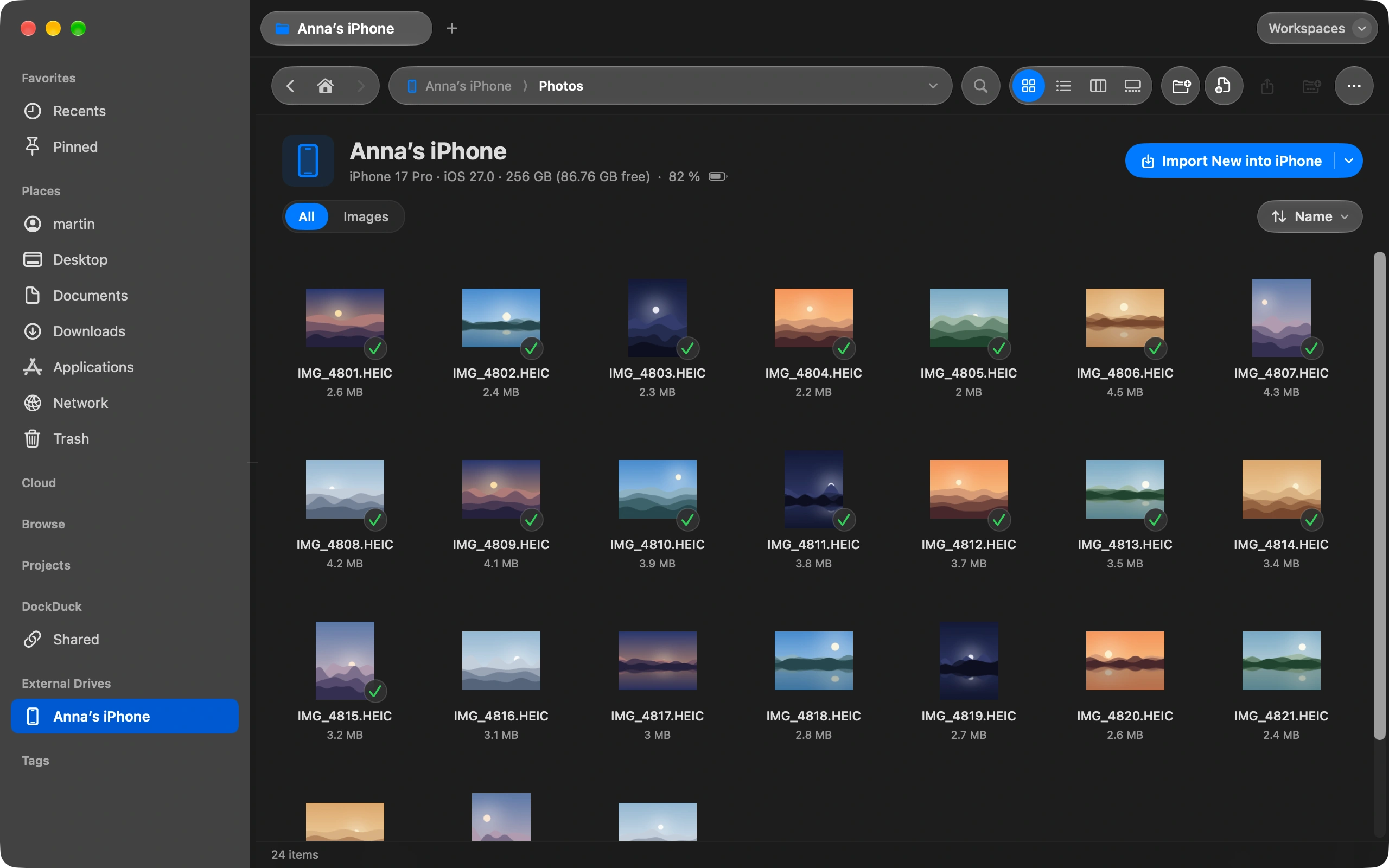
Browse the camera roll
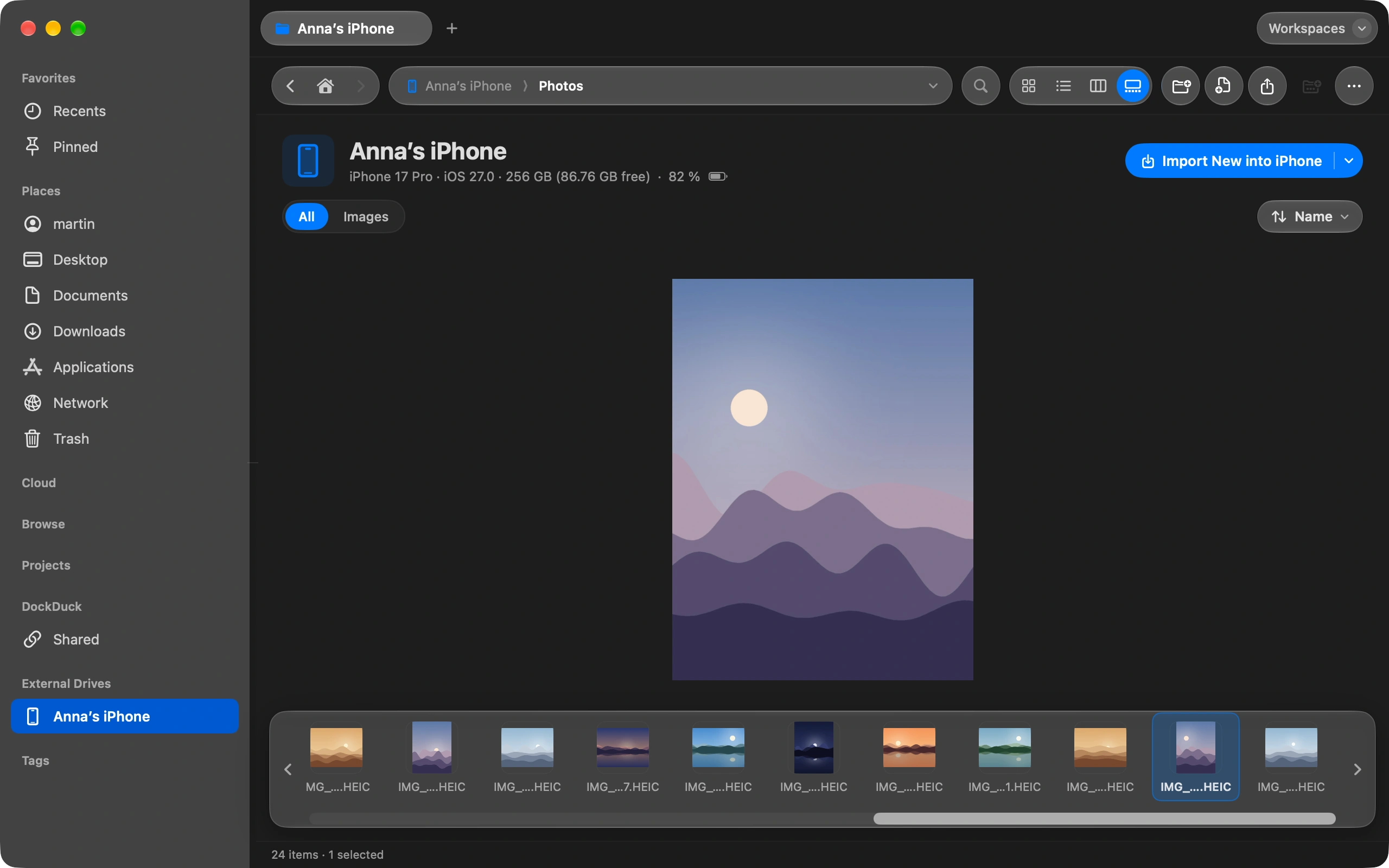
Open the device to see real thumbnails. Click any photo or video to look at it full size.
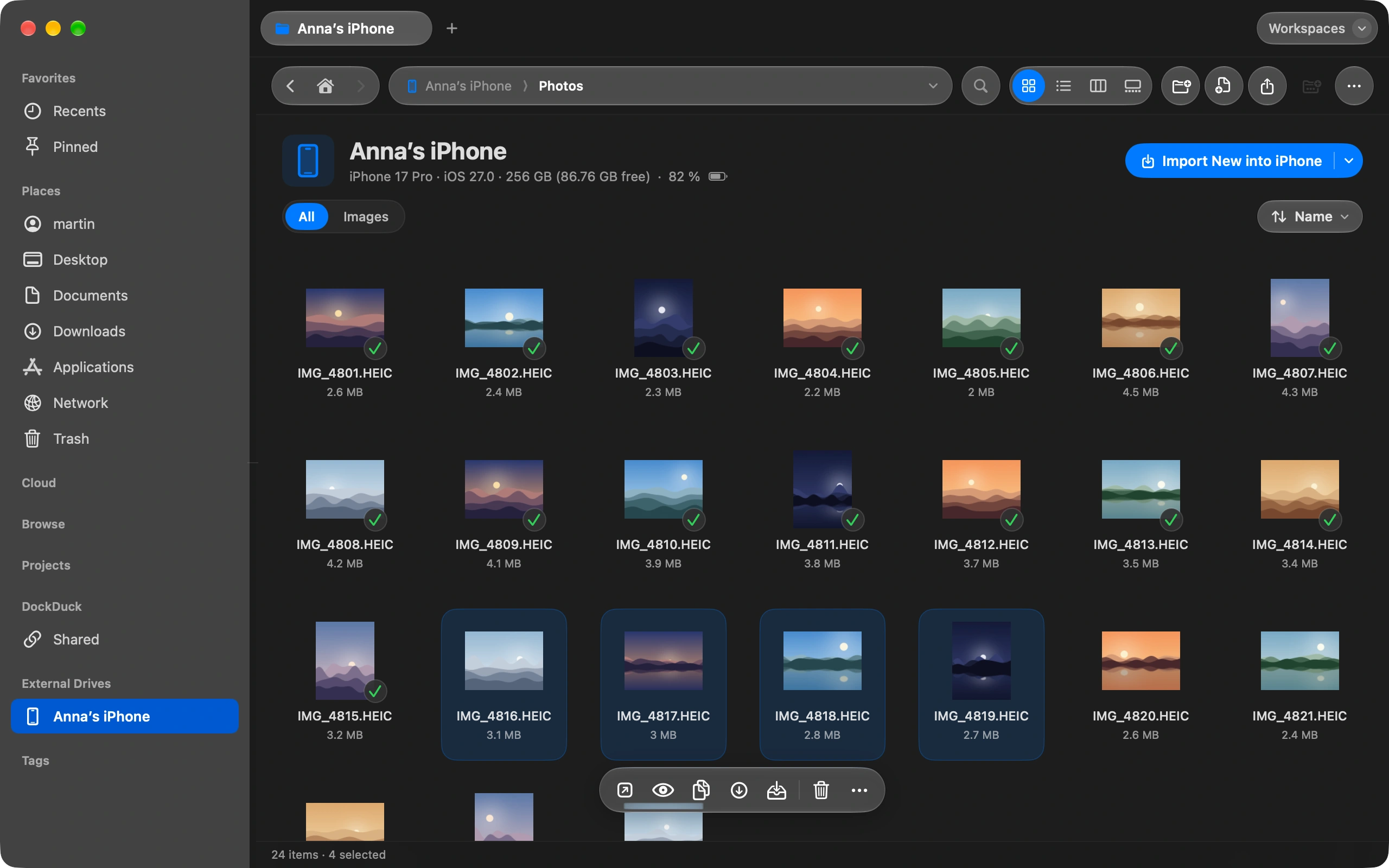
Copy what you want
Drag photos to any folder on your Mac, or select them and choose Copy to Downloads.
Or import only the new ones
Click Import New and pick a folder. DockDuck compares the device with that folder and copies only the photos it does not have yet. It checks each copy and picks up where it stopped if the cable comes loose.
Good to know
- DockDuck remembers the folder for each device, so the next import is one click.
- When an import finishes, DockDuck offers to delete the imported photos from the device. They stay in Recently Deleted for 30 days.
- With iCloud Photos turned on, iOS refuses deletions. DockDuck tells you instead of failing quietly.
Finder and DockDuck
Finder shows the iPhone for backups and syncing, not its photos. You go through Image Capture or Photos.
The camera roll is a folder like any other. Drag out what you want.
Questions people ask
- Do the photos keep their original quality?
- Yes. DockDuck copies the files as they are on the device, HEIC or JPEG, with their date, location and other metadata. Nothing is recompressed. Live Photos come across as the still image plus its short video.
- My iPhone does not show up. What do I check?
- Unlock the phone and tap Trust if it asks about this computer. Use a cable that carries data, not only power, and try another port. If the Photos app can see the phone, DockDuck can too.
- Can I import videos as well?
- Yes. Videos sit in the camera roll next to the photos and copy the same way. Import New treats them like any other file, so a long video that was interrupted resumes instead of starting over.

Try DockDuck on your Mac
Download for MacFree 14-day trial. No account and no card required.
Keep reading
All guidesHow to send a large file from your Mac
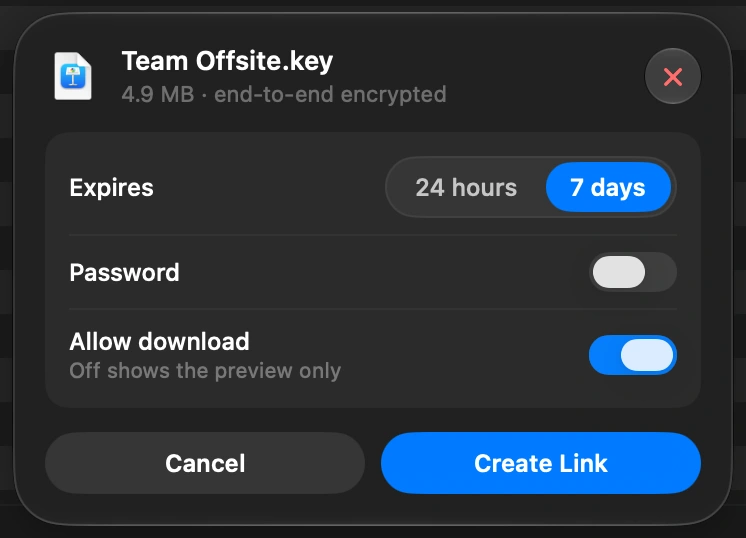
Select the file in DockDuck and choose Share Link. You get a link to send to anyone, and they open it in any browser.
How to see what is taking up space on your Mac
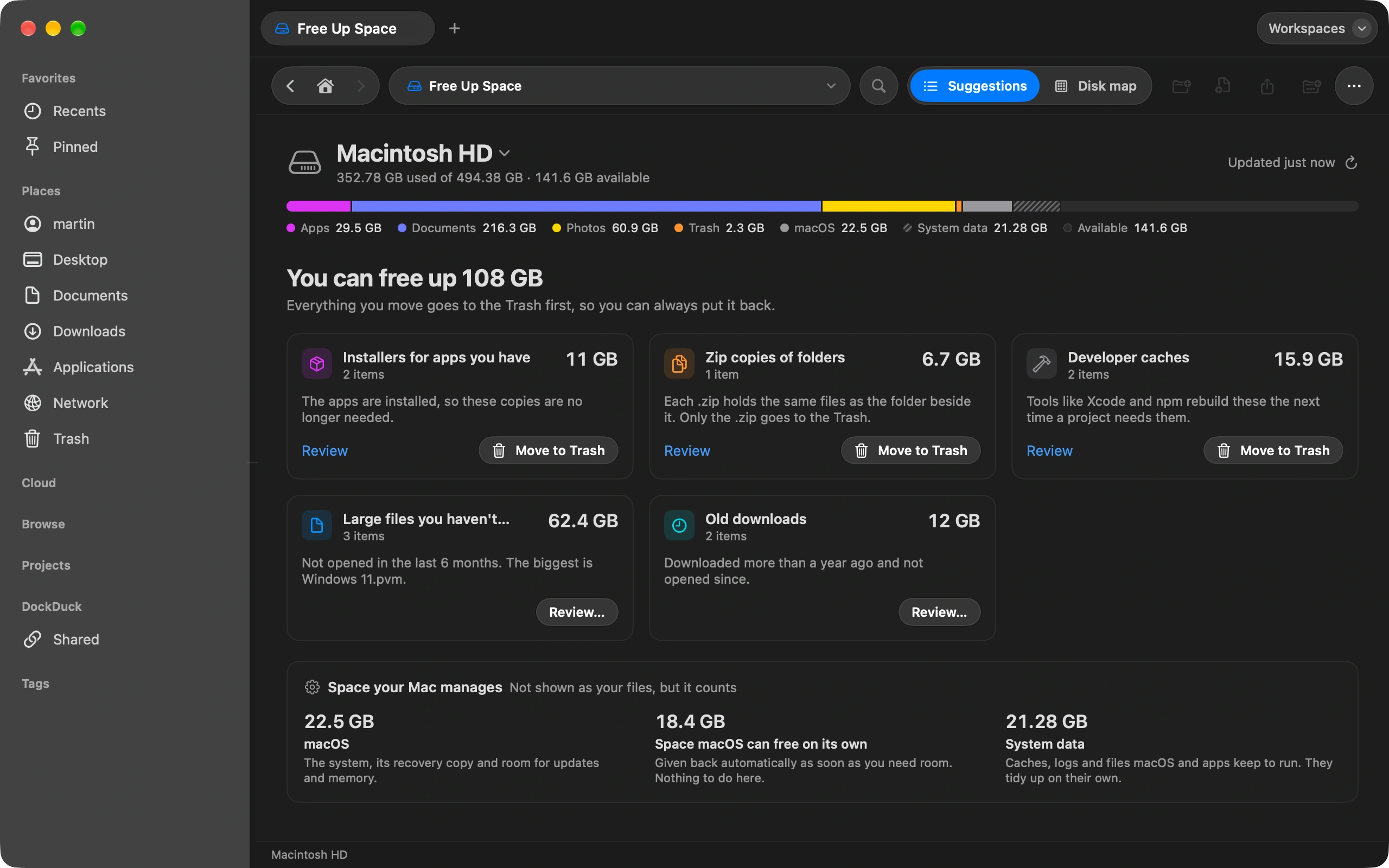
Free Up Space shows what fills your disk and what is safe to remove.
How to keep your Downloads folder tidy automatically
Sort Downloads once, then let rules keep it that way on their own.