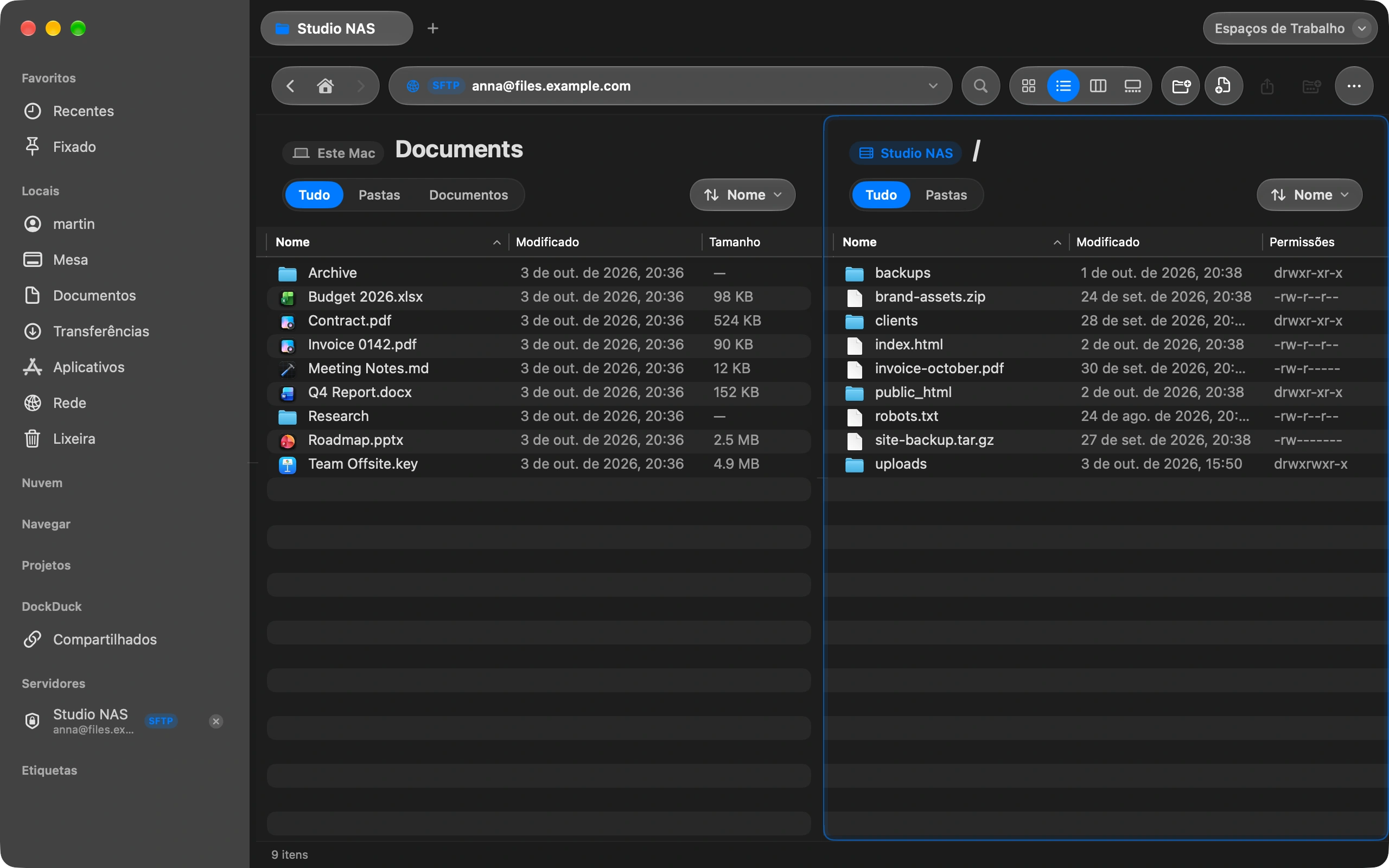
Your hosting gives you an FTP or SFTP address so you can put files on your site. Finder cannot upload to it. DockDuck opens the server next to your Mac, and uploading is a drag from one side to the other.
Find your FTP details
You need four things from your hosting: the server address, a username, a password, and whether it uses FTP or SFTP. They are in your hosting panel, usually under FTP Accounts, and in the welcome email your host sent.
Connect
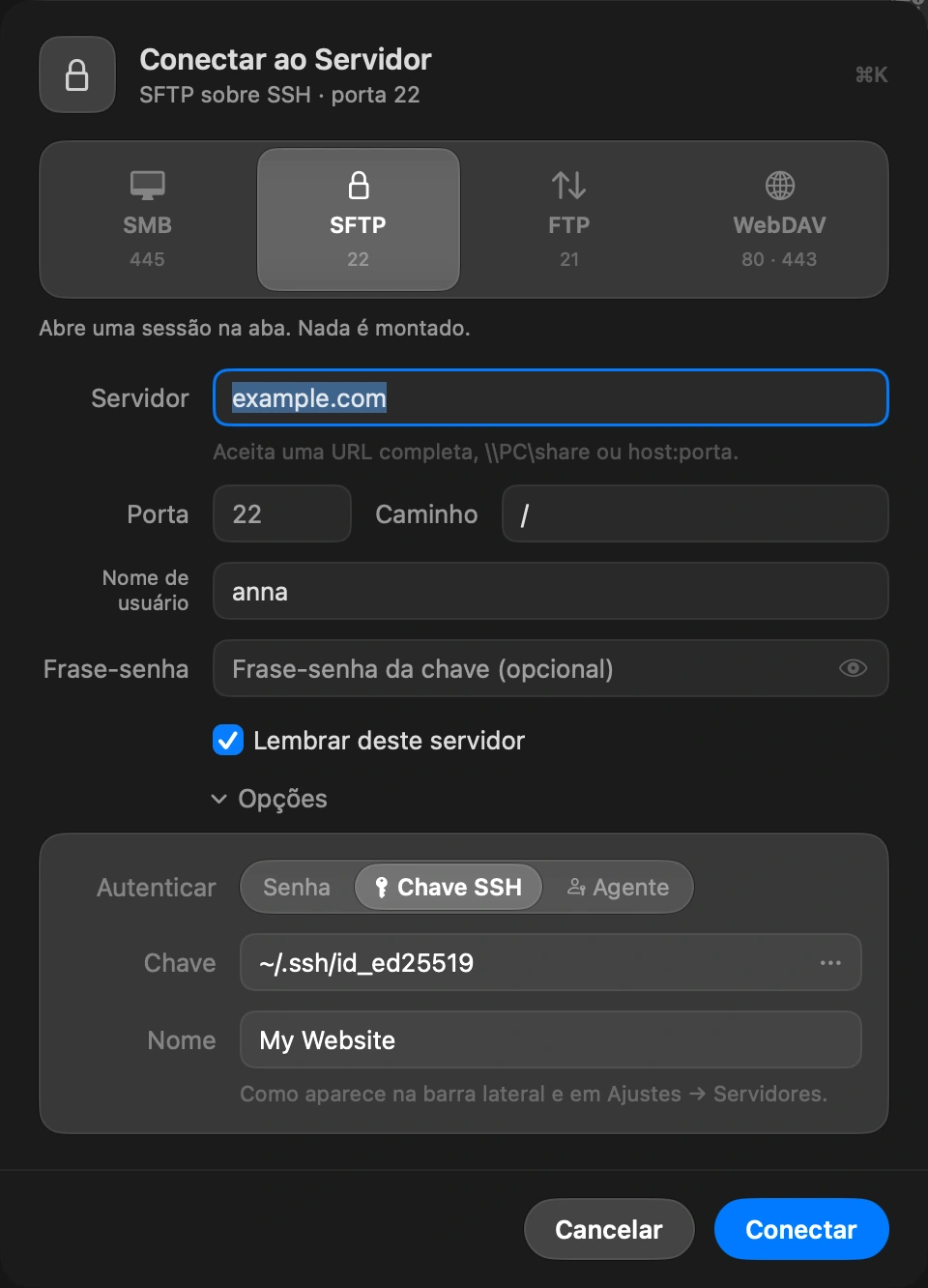
Press the shortcut to focus the address bar at the top of the window, type the address, like sftp://user@example.com, and press Return. Add the password in the sheet that opens. Leave Remember this server on and the next visit is one click in the sidebar. You can also add the server from Settings: choose Servers and click Add Server. ⌘L
Open your site’s folder
On the server side, open the folder your site lives in. Most hosts call it public_html, www or htdocs. On the Mac side, open the folder with the files you want to upload.
Drag the files across
Select files or whole folders on the Mac side and drag them to the server side. A folder goes up with everything inside it. Copy and paste works too.
Choose what happens to files already there
When a file with the same name is already on the server, DockDuck asks before touching it: Replace it, Keep Both, or Skip. One answer can apply to every file left in the upload.
Watch it finish
The transfer at the bottom of the window shows the speed and the time left. If you switch to another app, a notification tells you when it is done.
Bom saber
- Plain FTP sends your password in readable text. DockDuck warns you before it connects. If your host offers SFTP or FTPS, use that.
- DockDuck uploads one file at a time, because many hosts allow few connections. A host that allows more goes faster with Simultaneous transfers in Settings, under Servers.
- A server that refuses a file says so right away, in plain words, and the rest of the upload goes on.
Finder e DockDuck
Finder cannot upload to an FTP or SFTP server.
Your Mac on the left, your site on the right, and a drag between them.
Perguntas frequentes
- Which folder do I upload to?
- The one your host serves as the website, usually public_html, www or htdocs. A file you put there appears at your address right away. If you see none of those names, your host’s help pages say which folder it is.
- Should I use FTP or SFTP?
- SFTP when your host offers it, because it protects your password and your files on the way. FTPS is the protected form of FTP and is just as good. Use plain FTP only when your host gives you nothing else.
- What if the connection drops in the middle?
- DockDuck reconnects on its own after a short drop and carries on. If some files did not make it, the transfer says how many failed, and you can drag those again.
- Can I change a file that is already on my site?
- Yes. Upload the new version to the same folder and choose Replace when DockDuck asks. You can also rename, delete and make folders on the server side with the same menus as on your Mac.

Experimente o DockDuck no seu Mac
Baixar para MacTeste grátis por 14 dias. Sem conta e sem cartão.
Continue lendo
Todos os guiasComo conectar a um servidor FTP ou SFTP pelo Mac
Adicione o servidor uma vez e navegue nele como em qualquer pasta do seu Mac.
How to connect to an SFTP server with an SSH key on your Mac
Pick your key file once and the server opens without a password.
Como enviar um arquivo grande do seu Mac
Selecione o arquivo no DockDuck e escolha Compartilhar link. Você recebe um link para mandar a qualquer pessoa, que abre em qualquer navegador.