Many servers only let you in with an SSH key, and a key is safer than a password. DockDuck signs in with the key you already have and opens the server next to your Mac.
Check that you have a key
Keys live in the .ssh folder of your home folder, as a pair: id_ed25519 is the private half and id_ed25519.pub is the public half. If the folder is empty, open Terminal, run ssh-keygen -t ed25519 and press Return at each question.
Give the server the public half
The server has to know your key before it lets you in. Paste the contents of the .pub file into the SSH Keys page of your hosting panel, or run ssh-copy-id user@example.com in Terminal. If you already sign in with ssh from Terminal, this is done.
Type the address
Press the shortcut to focus the address bar at the top of the window, type the server, like sftp://user@example.com, and press Return. You can also add the server from Settings: choose Servers and click Add Server. ⌘L
Choose SSH key
In the Connect to Server sheet, open Options and set Authenticate to SSH key. Pick the private key file, the one without .pub. The button at the end of the field opens your .ssh folder. If the key has a passphrase, type it in the Passphrase field.
Trust the server once
The first time, DockDuck shows the server’s host key and asks you to confirm it, the same check ssh does.
Work on both sides
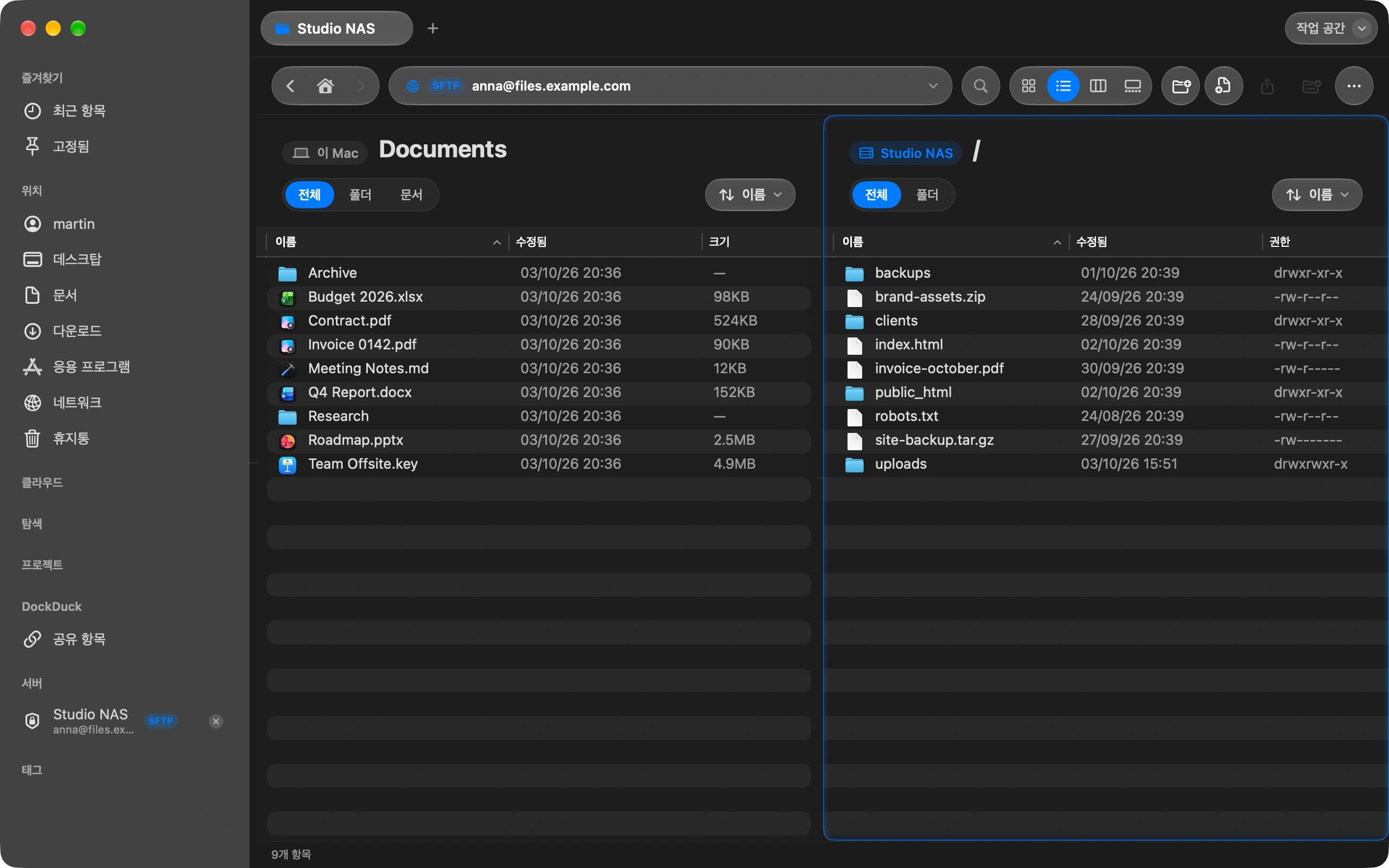
Your Mac is on the left and the server on the right. The server stays in the sidebar, and the next visit is one click with no password to type.
알아두면 좋은 점
- DockDuck reads Ed25519 and RSA keys in the OpenSSH format, the one ssh-keygen makes.
- The private half never leaves your Mac. DockDuck uses it to sign in, and the server only ever holds the public half.
- If the server changes its host key later, DockDuck stops and tells you before it connects again.
Finder와 DockDuck
Finder has no SFTP. Terminal has it, one command at a time.
Pick the key once, and the server opens like any folder on your Mac.
자주 묻는 질문
- Which of the two files do I pick?
- The private one, with no extension, like id_ed25519. The .pub file is the half that goes on the server. DockDuck never uploads the private file anywhere.
- DockDuck says it could not read my key. What now?
- Either the passphrase is wrong or the key is in a format DockDuck does not read. Type the passphrase again first. A key made by another program, like a .ppk file from PuTTY, has to be exported in the OpenSSH format.
- The server rejected my key. Why?
- The server does not have the public half for that user yet, or the username is not the one the key was added to. Check both in your hosting panel, then connect again.
- Is a key really safer than a password?
- Yes. A password travels to the server every time and can be guessed. A key is never sent, it only proves it is yours, and nobody can guess it.

Mac에서 DockDuck 사용해 보기
Mac용 다운로드14일 무료 체험. 계정도 카드도 필요 없습니다.
이어서 읽기
모든 가이드Mac에서 FTP 또는 SFTP 서버에 연결하는 방법
서버를 한 번 추가하면 Mac의 다른 폴더처럼 둘러볼 수 있습니다.
How to upload files to your website from your Mac
Connect to your hosting with FTP or SFTP and drag the files across.
Mac에서 대용량 파일 보내는 방법
DockDuck에서 파일을 선택하고 링크 공유를 선택하세요. 누구에게나 보낼 수 있는 링크가 만들어지고, 상대방은 어떤 브라우저에서든 열 수 있습니다.